How To: Disable Lock Screen Security While in Trusted Locations on Your Galaxy S5

How To: Disable Lock Screen Security While in Trusted Locations on Your Galaxy S5
With all of the personal data that's stored on our smartphones, it's of vital importance that we have some sort of lock screen security enabled. One of the Galaxy S5's killer features is obviously the fingerprint scanner. It makes the process of dealing with a secure lock screen a bit easier than typing in a password or PIN.But it's not perfect. How many times have you seen the Swipe Slower message when attempting to unlock your GS5 this way? It can be a bit finicky, to say the least. And there are many times throughout the day where such lock screen security is not needed—especially when you're at home.Developer Marcel Dopita had these frustrations in mind when he created his Xposed module, No Lock Home. With this, you can easily disable lock screen security while connected to a trusted Wi-Fi network or Bluetooth device. It then automatically enables lock screen security again when you leave this trusted environment, ensuring that your data remains protected. Please enable JavaScript to watch this video.
PrerequisitesRooted Galaxy S5 (or any other rooted device running Android 4.4) Xposed Framework installed Unknown Sources enabled

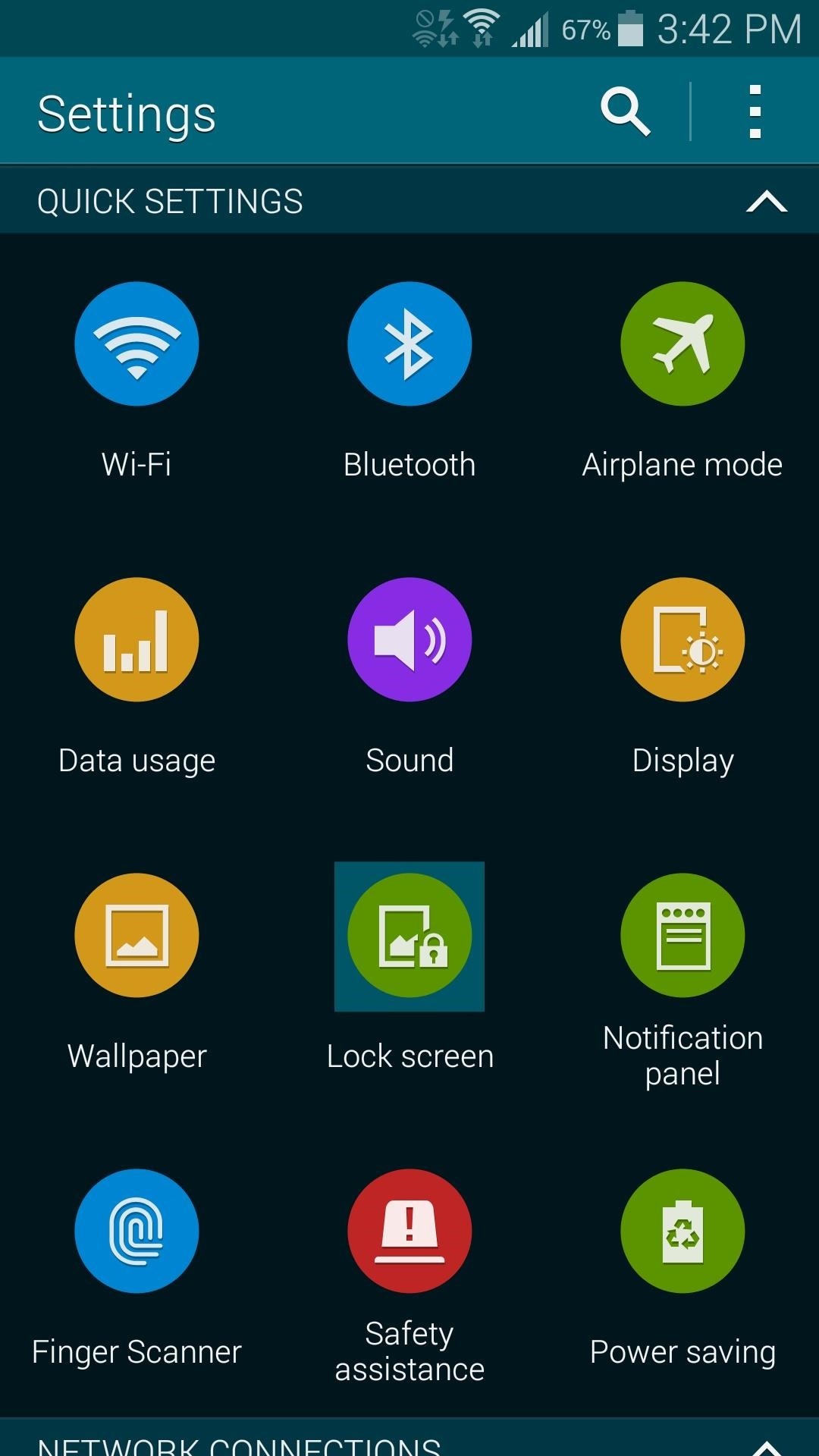
Step 1: Ensure That You Have Lock Screen Security EnabledThe module that turns your secure lock screen on and off automatically requires that you have lock screen security set up beforehand. If you haven't done this already, head to Settings, then Lock Screen. Tap the Screen Lock entry right up top, then select the security method that you'd like to use (I'd recommend Fingerprint). From here, just follow the prompts to enable lock screen security.

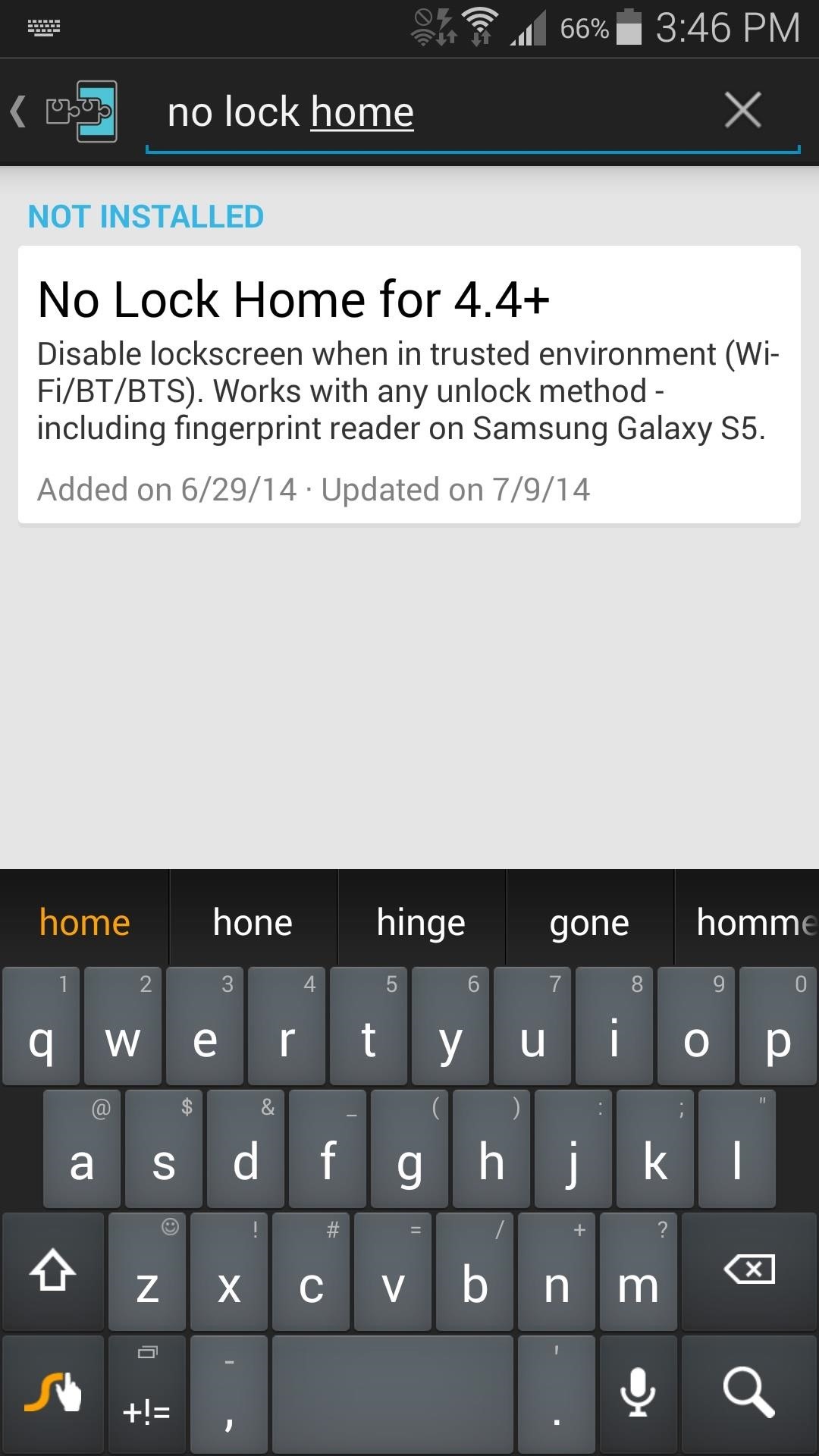
Step 2: Install 'No Lock Home'Head to the Download section of your Xposed Installer app and search No Lock Home. Tap the top result, then swipe over to the Settings tab. Next, tap the Versions to be shown entry and select Experimental. Since the module is in its early stages of development, the only versions available at the moment are experimental builds—but don't worry, I've tested it out and it works perfectly on the Galaxy S5. With that out of the way, swipe back over to the Versions tab and tap the Download button on the most recent entry. This will automatically launch the installer process, so tap Install on the next screen. When it's finished, you'll get a notification from Xposed that lets you know the module needs to be activated and a reboot is in order. So tap Activate and reboot here, and Xposed will take care of the rest.

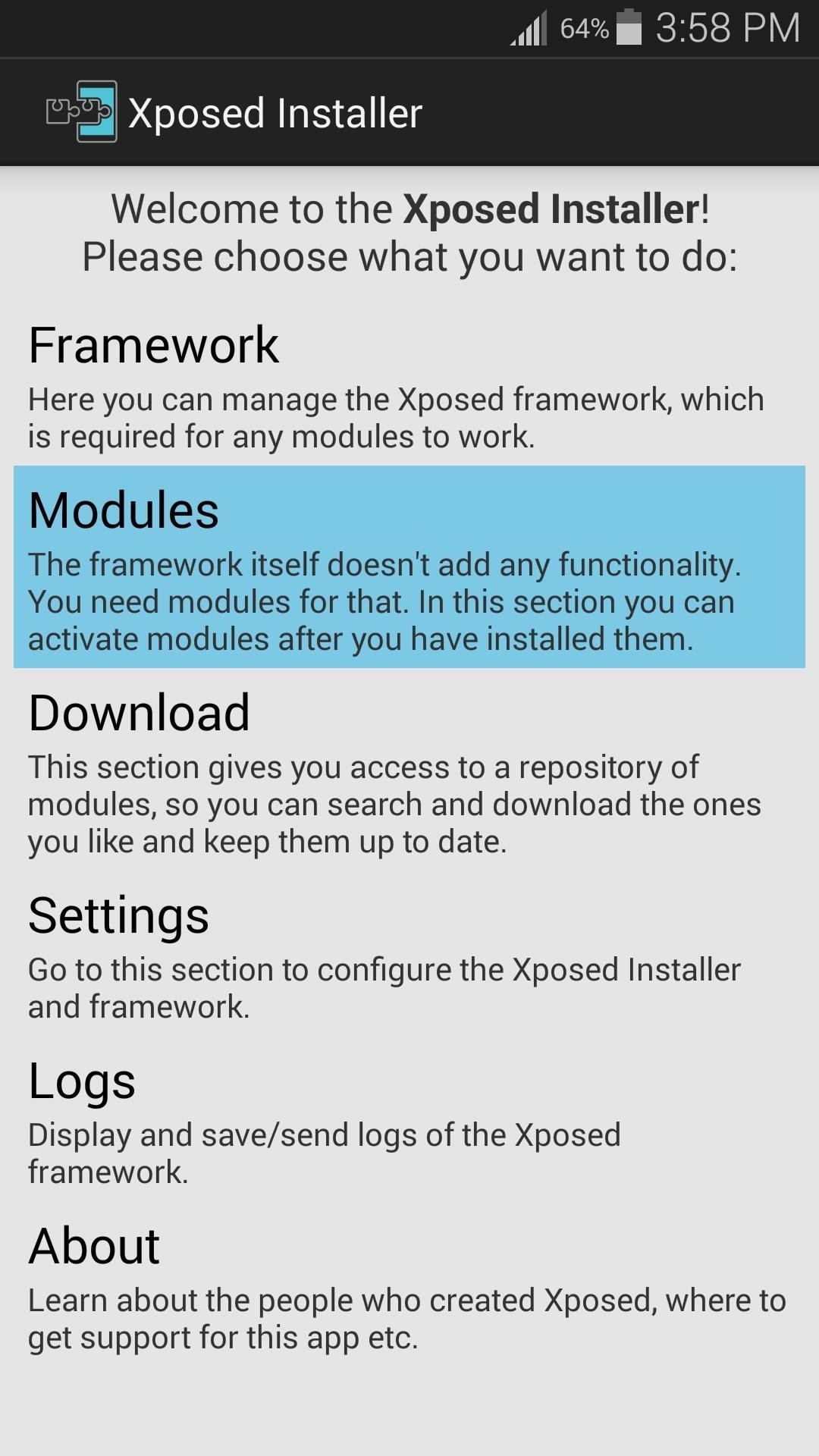
Step 3: Configure 'No Lock Home'When you get back up, you should take some time to configure No Lock Home. You won't find the app in your app drawer, but you can still access it easily. Head to the Modules section of the Xposed Installer app and tap the entry for No Lock Home. This will take you straight into the app. First, if you'd like to keep the normal swipe lock screen when you're in a trusted environment (rather than no lock screen at all), tick the box next to Use Swipe. Next, you can establish what trusted environment that you would like to have lock screen security disabled in. If you would like to disable lock screen security while connected to any Wi-Fi network, tick the box next to Any Connected Network.Otherwise, if you'd like to disable the secure lock screen only while connected to a specific network, tap the MAC Addresses or Names entry. Here, you can enter the MAC address of your home router, or even use the common SSID name (the name you see when connecting to your Wi-Fi network). These values are both case-sensitive, so be sure you've typed them correctly. If you'd like to add multiple MACs or SSIDs, add a semicolon (;), then type the second name. Bluetooth devices can be set configured in much the same way. If you'd like to disable lock screen security while connected to a Bluetooth device, such as headphones or smart watches, use these two options. Additionally, cell towers can be set as a trusted environment, so that lock screen security will be disabled any time you're connected to your local tower. This option requires that you know the ID number of a cell tower, and apps that can give you this information are available on the Play Store. Just be sure to format your entry with the LAC number first, then a hyphen (-), then the CID number.And that's about all there is to it. Your device will automatically disable lock screen security when you're in a trusted environment, making it easier to unlock your device when security is not needed. And when you're away from these areas, lock screen security will automatically become active again, preventing prying eyes from reaching sensitive data. (1) Screen security enabled (no WiFi), (2) Security disabled (connected to Wi-Fi) So which scenario did you choose as your 'trusted environment'? Let us know in the comments section below.


Without a passcode, it's a guarantee that if your Watch is stolen, the thief will be able to access all of the information on it, including Apple Pay. Also, thieves can wipe your Apple Watch and restore it as their own, so make sure to set a passcode—and not one of those generic 1234 ones. Remove Apple Pay
Apple Watch Flaw Lets Thieves Use Apple Pay - Tom's Guide


Instagram wants to bridge the gap between advertising and shopping for a more central buying experience. The app has long been a platform for advertisements, with both companies and creators using it as an outlet to link to products, and now that's going a step further with the ability to buy content featured in posts […]
Make Buying Stuff Easier on Instagram with the New Checkout


Apple first added the "Do Not Track" option to Safari in iOS 7, which sent a request to site owners and advertisers to not track your browsing activity. By tracking your activity, those third-parties could tailor content to you that you're more likely to interact with.
Apple to remove Do Not Track option from Safari in iOS and


Here's how you can get access to the release golden master build of iOS 11 today without having to wait until September 19 like everyone else. Must read: Buying a new iPhone just got more
How to install iOS 12 on your iPhone or iPad today - The Verge


The reason the flame can't travel backward into the gun and blow up is because the gun and hose contain 100% gas and 0% air which is why it isn't possible for the flame to travel back into the gun. Carbon dioxide (CO2) is used to pressurize this flamethrower. CO2 is an inert gas meaning fire cannot exist in it's presence.
3 Ways to Make a Water Gun - wikiHow


All the latest cameras news, rumours and things you need to know from around the world. Stay up-to-date with the most interesting cameras news here.


How To Install NES Emulator Free On iPhone, iPod Touch, & iPad Add Insanelyi Repo:

A quick demonstration on how to connect and use the features of an Apple wireless keyboard on your iPad. How to Make the Apple Logo on Your iPhone Light Up Like a Macbook (iPhone 6 & iPhone 6
How to use the iPhone's new one-handed keyboard in iOS 11


Here are the best ways to ensure your browsing stays off the books. Continue reading to learn how to browse the internet anonymously on an iPhone (or iPad). Next Up 4 Or use arrows to navigate
How to browse the Web anonymously - USA TODAY


Quick Actions are a set of buttons which let you quickly open things or switch settings on or off in Windows 10. There are 13 Quick Action buttons, and you can customize which four buttons appear
How To Customize Quick Actions In Action Center In Windows 10?


The ColorSnap® paint color matching app uses your Android or iPhone smartphone to match Sherwin-Williams' paint colors to pictures of your favorite things.
Best Color Apps for Mobile Devices - Part 2 | Munsell Color


Also, with CMTE, it was essential for the user to reboot their device, whereas upon using full Substratum mode, one can dynamically theme their device without the need to reboot. Furthermore, CMTE as a project has been left out ever since Android Nougat, while Substratum's development continues to grow.
15 Cool Substratum Themes You Can Try on Android (2017


Are you tired of all of those applications bombarding you on Facebook?Spamming you all the time, never stopping? Are they just annoying? Well, this video tutorial will show you how to remove unwanted, spammy, or otherwise annoying apps on Facebook.
3 Ways to Remove Unwanted Apps that Won't Delete on Mac


In addition to this, ProtonMail also supports sending encrypted emails to other email providers such as Gmail, Yahoo and AOL via symmetric encryption. This is sent in the form of a hyperlink
How to send self-destructing emails in Gmail - cnbc.com

How To: Make Your Facebook Profile Pic a Video That Loops

How To: Make Your Facebook Profile Pic a Video That Loops

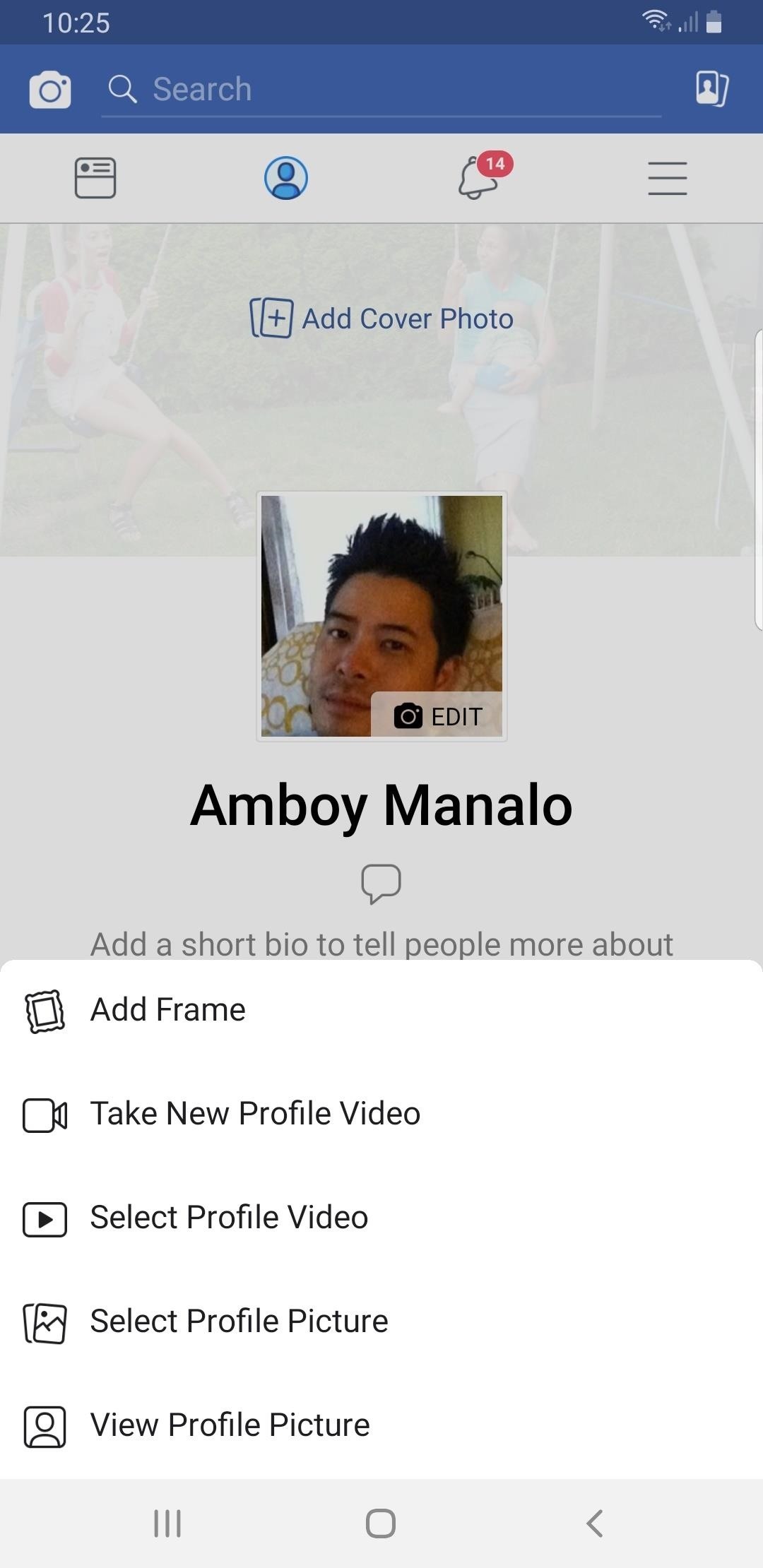
Instead of the still image we've been accustomed to since the inception of Facebook, you also have the option to apply a seven-second video as your profile image, which definitely mixes things up a bit with GIF-like animations. Best of all, this can be done straight from your iPhone or Android device.Within the Facebook app for iOS or Android, tap the hamburger menu button, then select your Facebook profile at the top of the screen. Next, tap your existing profile image, then you'll see a few options that include selecting or taking a new profile video. Tap "Select Profile Video" if you already have a video you'd like to use or tap "Take a New Profile Video" to record a new one.Don't Miss: Turn Your Live Photo into a Facebook Profile Video If you tap on your profile picture and don't see the "Select Profile Video" or "Take a New Profile Video" options, then you'll have to upload a video from the Facebook site on your computer.That said, if you chose "Take a New Profile Video," you'll be prompted to record a seven-second video. Otherwise, if you went with "Select Profile Video," your camera roll or gallery app will open, where you can pick a video that you already have on your device. If you upload a video longer than seven seconds, you have the option to trim it down to where you would like it to be. Using the menu bar at the bottom of the screen, you can also crop your video, turn the sound on or off, and lastly, write down a comment about your video. Hit "Save" once you're done to post your brand new profile video. Do you like using Facebook's profile video option, or is it just another silly thing to add to your page? Give us your take in the comments section below.Amboy Manalo contributed to this story.Don't Miss: More Facebook Tips & Tricks for Your PhoneFollow Gadget Hacks on Pinterest, Reddit, Twitter, YouTube, and Flipboard Sign up for Gadget Hacks' daily newsletter or weekly Android and iOS updates Follow WonderHowTo on Facebook, Twitter, Pinterest, and Flipboard
Cover image by Bettina Mangiaracina/Gadget Hacks, screenshots by Amboy Manalo/Gadget Hacks


Don't Miss: Turn Your Live Photo into a Facebook Profile Video; If you tap on your profile picture and don't see the "Select Profile Video" or "Take a New Profile Video" options, then you'll have to upload a video from the Facebook site on your computer.
Facebook: How to Make Your Profile Picture a Video | Time
time.com/4057391/facebook-profile-picture-video-gif/
Facebook is rolling out a new feature that lets you set a short, GIF-like looping video as your profile picture, the company announced Wednesday. The new feature is rolling out slowly, Facebook
How to make your Facebook profile picture a video | TechRadar

How to Make Your Facebook Profile Pic a Video That Loops


Facebook has recently introduced a new feature that lets you use short videos for you profile picture, giving you the ability to enliven your profile page when people visit. Mercifully the short
How To Get A Sweet New 'GIF' Facebook Profile Pic | WIRED


Facebook is starting to roll out some interesting new changes to mobile user profiles, starting with those of you on iOS. Here's how to change your profile picture to a looping video clip on the
How to create a Facebook profile video - CNET


There should be an icon flashing between the camera and the video symbol on your profile picture. Hit that and choose whether you want to take a video or upload one. More on Facebook
How To Make Your Facebook Profile Picture Into A Looping
digg.com/video/facebook-video-profile-picture-how-do-i
Facebook has a new feature for some users that lets them turn their profile picture into a GIF and Wired is here to show you how to do it. Go forth and animate! How To Make Your Facebook Profile Picture Into A Looping Video - Digg
How To - Make your Facebook profile picture a video - YouTube

Watch more CNET videos:

Here's how to turn your Facebook profile picture into a video or animation. Subscribe to CNET:

Hey there! Its Teja Here! Glad to release this video on Independence Day! Jai Hind! In this video, I will be teaching you how to make your Profile Picture a looping video on Facebook that is, how
Your Profile Picture and Cover Photo | Facebook Help Center


If you feel your Facebook profile is too static, Facebook is giving you 7 seconds to work with. You now have the option of ditching your profile picture for a short, looping profile video. To make


Go to your profile and tap your profile picture or video. Tap Take New Profile Video to take a new profile video or tap Select Profile Picture or Video to choose a video from your phone. Tap Edit to edit your video. Tap Trim to make your video shorter, tap Sound to choose if the sound is on or off or tap Cover to choose a thumbnail for your video.
How to Set a Looping Video as Your Facebook Profile Picture


Facebook Trick - Make Your Profile Picture a Looping Video

How To: Hide Contacts That Don't Have Phone Numbers on Android

How To: Hide Contacts That Don't Have Phone Numbers on Android
Android lets you sync your contacts across devices. The OS will use not only contacts saved on your phone, but also your Gmail. This choice can lead to a contacts list populated with entries that don't have a phone number, which can quickly add up. To mitigate this problem, there are a few methods.Previous versions of Android used to include an option in the Google-developed Contacts app to only show contacts with phone numbers, but this was removed in Android 5.0 Lollipop. Because of this decision, you'll need a workaround to accomplish this now. Fortunately, our first method is simple to perform and is accessible to most Android users.

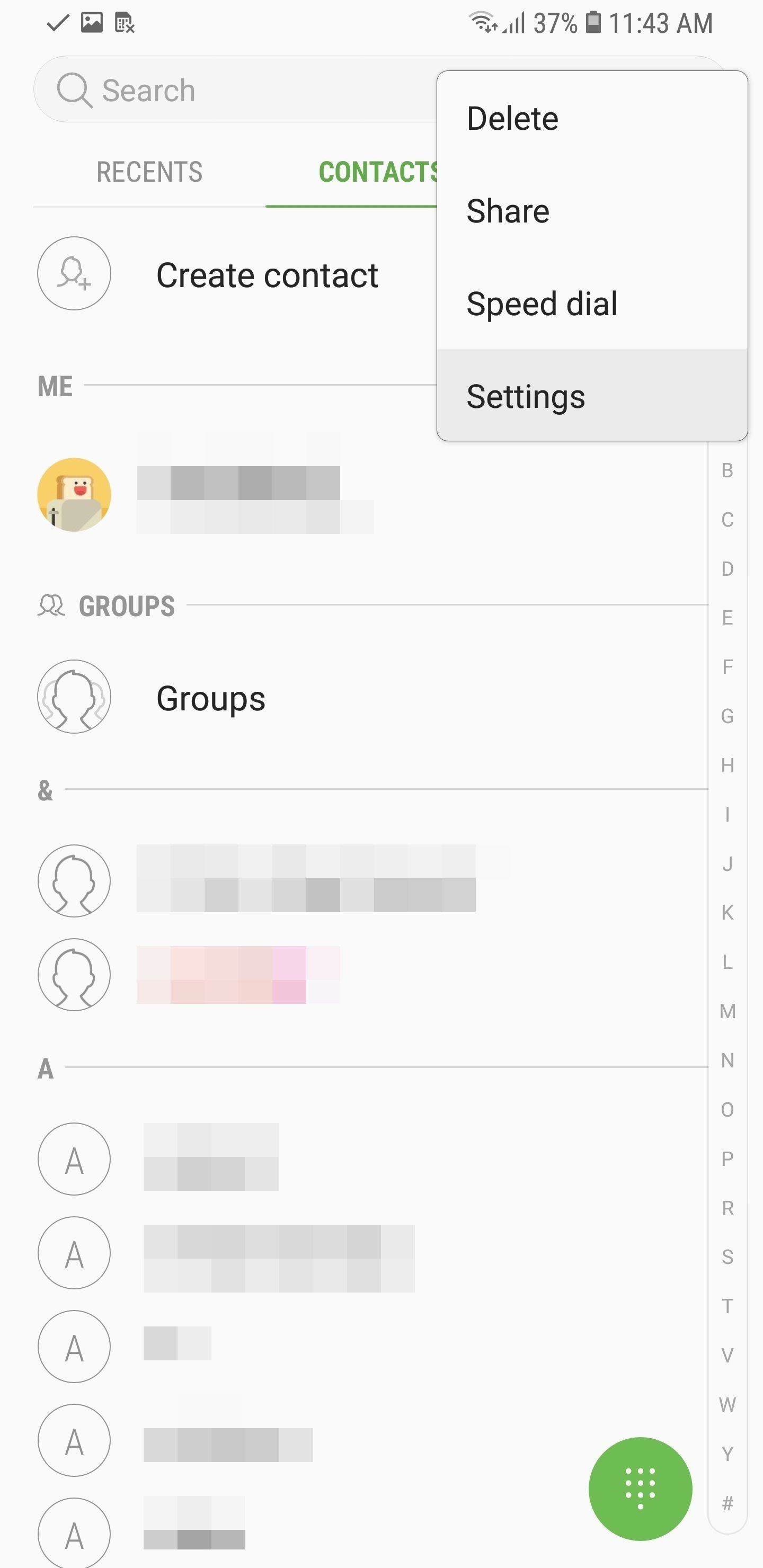
Method 1: Set Your OEM Contacts App to Only Show Phone NumbersWhile the Google-developed Contacts app can't hide phone number-less contacts without a workaround, many OEM replacement apps do. Since only a handful of devices run stock Android, there is a good chance your device has one of these alternatives preinstalled. These apps tend to include an option to assist specifically with contacts without phone numbers. Here are just a few examples.Samsung ExperienceFor those using a Samsung device, you can find the option using the Phone app. Select the three vertical dots in the upper-right corner of your display and choose "Settings." Here is where you can enable the "Hide contacts without numbers" option. Oxygen OSFor OnePlus users, this option is pretty straightforward to find. Open your Contacts app and select the three vertical dots in the upper-right corner of your display. Choose "Settings" then enable "Only show contacts with number." LG UXFor LG devices, it requires a few more steps. Open the Phone app and select the Contacts tab. Select the three vertical dots in the upper-right corner of your display and choose "Contacts settings." Select "Display" and then enable "Show contact with phone numbers only."

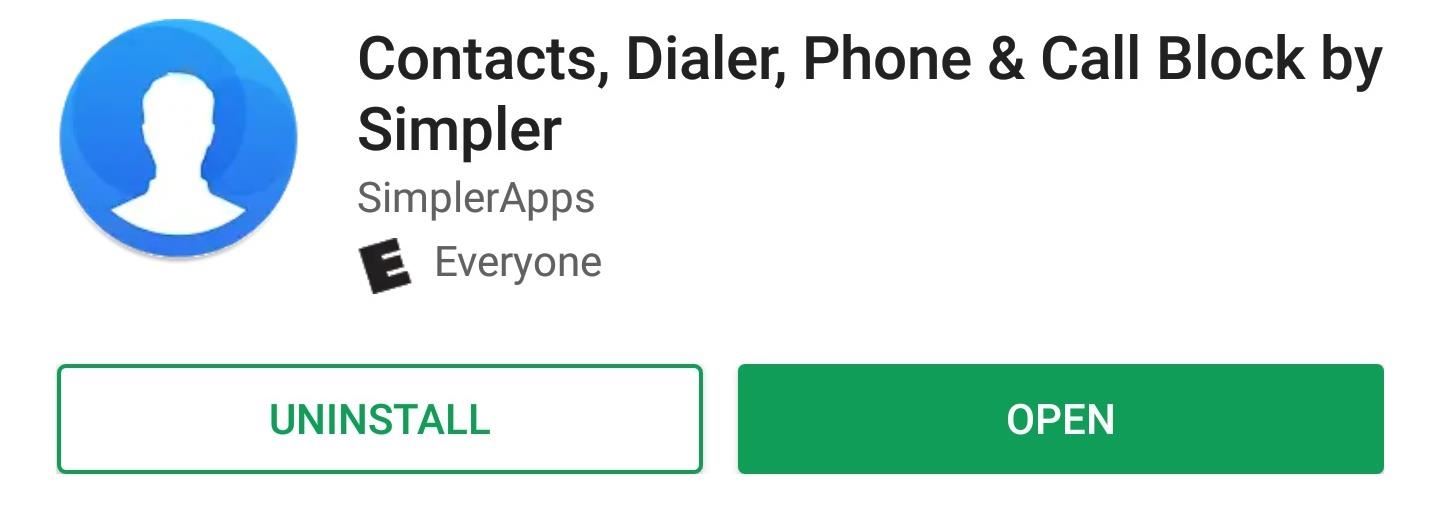
Method 2: Use a Third-Party AppThere are some apps which include the ability to hide contacts with phone numbers. One of the cleanest choices we found was Contacts, Dialer, Phone & Call block by Simpler. This free app offers an experience similar to Google Phone, but it's a bit more customizable.Install Contacts, Dialer, Phone & Call block by Simpler from the Play Store After installing the app and going through the signup process, select "More" located in the bottom-right corner of your screen. Choose the "Settings" option, then "Contact List," to find a checkbox for "Show only contacts with phones." This app, like many contacts replacement app,s includes several tools outside just the ability to store and retain your address book. One such tool is the dialer. Depending on how you feel, you might wish to use the default app dialer that came with your phone.To accomplish this, navigate to the phone's Settings menu and select "Apps." Depending on the skin, locate "Default Apps" which will be either on the main "Apps" page or in the sub-menu which you access using the three vertical dots in the upper-right corner of your display. Select "Calling App" (or "Phone App") and choose the dialer app you wish to use.

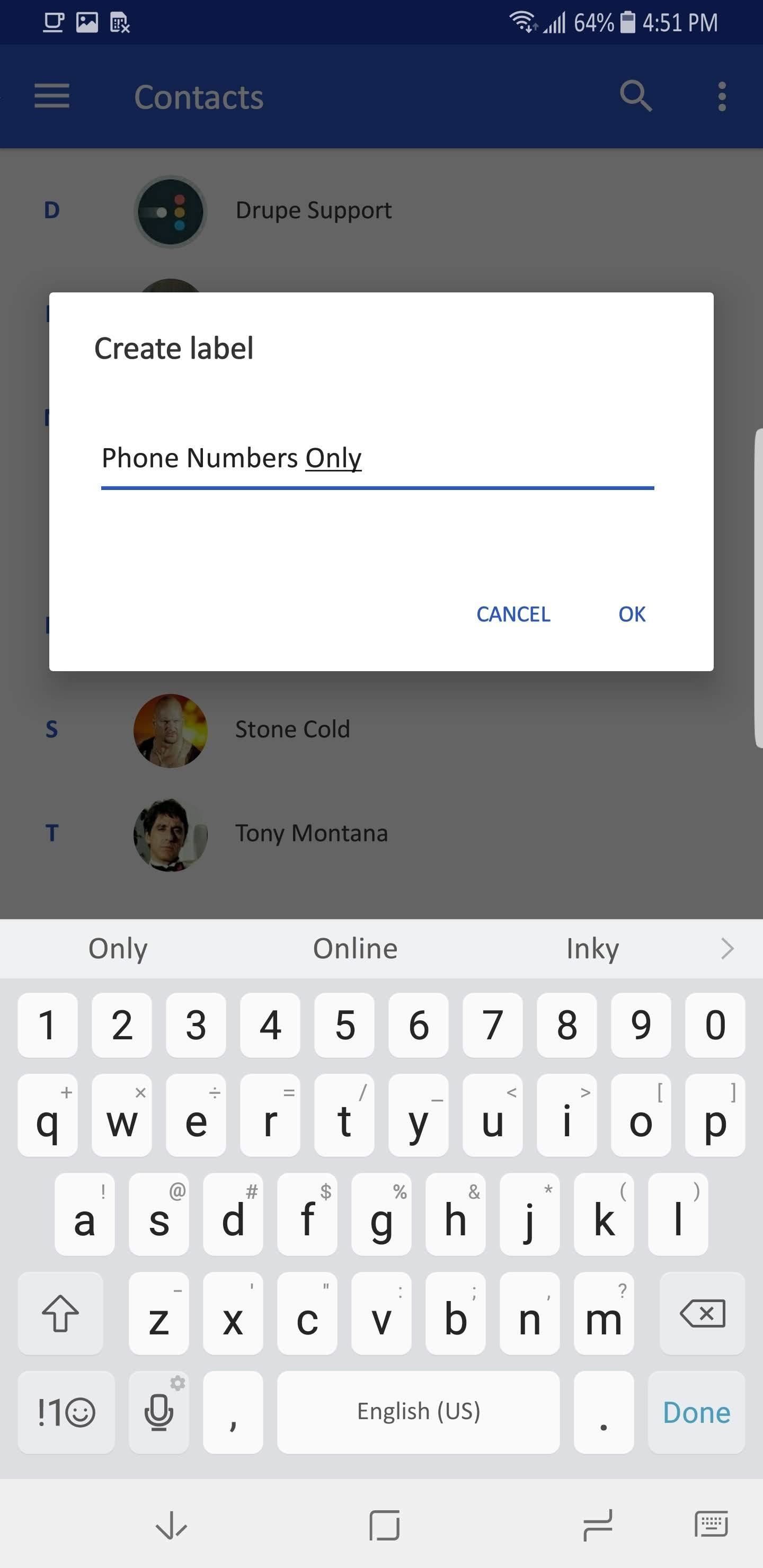
Method 3: Create a Phone Number-Only LabelFor those of us who use a stock Android device and prefer not to use a third-party app, there is a workaround which you can use to accomplish this task within the default phone app. Open Google Contacts, select the hamburger menu in the upper-left corner, and choose "Create label."Type "Phone Numbers Only" (although you can use whatever label you want) and select "OK." On the new page, select "Add contacts" and choose each saved contact that has a phone number (use the person-shaped icon in the upper-right corner of your display to continue to add contacts).Once you finish adding each contact, select the back button to return to the main page. Select the three vertical dots in the upper-right corner and choose "Customize view."Select "Customize," and on the next page, uncheck every check box except for the "Phone Numbers Only" (or whatever you decided to label the new group). Choose "Save" in the upper-right corner, which will return to the main page with only the contacts you just added. No longer do you need to scroll through an unnecessarily long list of contacts populated with saved entries that you can't call. Using any one of our methods, you can clean up your phone's contacts. Which method did you use? Let us know in the comments below.Don't Miss: How to Transfer Your iPhone Contacts to AndroidFollow Gadget Hacks on Facebook, Twitter, YouTube, and Flipboard Follow WonderHowTo on Facebook, Twitter, Pinterest, and Flipboard
Cover image and screenshots by Jon Knight/Gadget Hacks


This procedure covers the general guidelines for soldering surface mount Gull Wing components. There is basically only one type of Gull Wing component. Whether leads are on two sides or four sides, or whether the component is large or small, the soldering principles are the same. Minimum Skill Level - Intermediate
How to remove a solder bridge - PIEK


After months of hard work, they've finally released a utility that will jailbreak your iPad, iPhone, or iPod touch—as long as it's running any iOS version from 9.2 all the way up to 9.3.3. Don't Miss: The 10 Best Reasons to Jailbreak iOS 9
HowTo: Hack Any iPhone, iPod Touch or iPad « Tablets


Whew! That's a lot of super cool, highly useful RV apps. Now, I want to hear from you. What are your favorite apps for RV travel? Leave your choices in the comment box below. Like this article? Share it with your friends. Post it, tweet it, pin it, or like it. Take a moment and share this article. Thanks!
18 Must-Have Travel Apps For Traveling Abroad - Lifehack


As one of the most popular social media apps, Snapchat saw nearly 160 million daily active users by the end of 2016. With so many users it's no wonder that cybercriminals would like to gain access to your Snapchat account.
Snapchat Lost Your Trust? Here's How to Completely Delete


News: Home Decor App Houzz Expands Augmented Reality Catalog to Include Virtual Floor Tile News: T-Mobile Galaxy S8 Update Breaks SafetyNet & Android Pay How To: This All-in-One Mods Catalog Makes Customizing the OnePlus One Extremely Convenient
Can we all just calm down a bit and stop the toxic tone


Find old vinyl Goodwill Tips: Crafting With Vinyl: The Best in Record Crafts. I love the scratchy sound of music on vinyl and the old diners decorated with Seems to make the food
Counterfeit Records and Pirate Pressings - rarerecords.net

How to SSH into iPhone/iPod Touch using WinSCP (Windows)


They NEED to get through. That can be shocking, however, especially if they happen when you're sleeping, driving, or otherwise not expecting a loud noise to come from your iPhone. That's why, ultimately, AMBER and other alerts work at your discretion. How to control AMBER and Government Alerts on your iPhone. Launch the Settings app on your iPhone.
Delivery and Pickup - Apple


For instance, a relatively unknown feature called Adapt Sound allows Galaxy users to get some of the best sound quality on any mobile device. The feature essentially tests your hearing with a series of beeps, then uses the data it collects to create a personalized sound profile that it applies system-wide.
How to Personalize Sound Quality for Headphones on Your


What the application does is that it enables a user to change daily wallpaper on the lock screen or desktop background from Bing or Spotlight automatically. In general it is a simple app with a few options that expand the personalization experience on your Windows 10 device.
Automatically Save Windows Spotlight and Bing Images as


Make Magazine celebrates your right to tweak, hack, and bend any technology to your own will. In this video tutorial episode of Weekend Projects with Kipkay, you'll learn how to build an animal detector from a motion light and webcam. Make a varmint detecting webcam that captures rascally rabbits in your backyard.
Animal Detector | Make:

How To: Download Entire Maps for Offline Use in Google Maps

How To: Download Entire Maps for Offline Use in Google Maps

Spotty cellular reception is a fact of life that we all have to deal with, especially when you're traveling. For those of us who rely on our smartphones for navigation, driving through areas with bad mobile data service can be a cause for major headaches.Thankfully, Google Maps has this problem covered with a feature that lets you download your route, which can be a lifesaver if you ever get lost in an area with poor reception. This feature works for both Android and iPhone, but the process is slightly different between the two. Either way, we've got you covered below, so keep reading to find out how to download routes in Google Maps for offline use.Don't Miss: How to View Google Maps Location History on iPhone or Android

Step 1: Enable Location ServicesBefore you start downloading maps, you'll need to make sure location services are enabled. There's two ways to access this setting for Android devices — you can either go into your phone's Settings app and search for "Location," then make sure the switch on the top of the Location page is toggled on, or you can access your phone's Quick Settings panel and tap on the "Location" tile if you have the tile set on there.From there, make sure Google Maps has access to location services by going to Settings –> Apps (or "Apps & notifications") –> Google Maps (or "Maps") –> Permissions –> Location. Set the toggle switch to the on position here, or choose either "Allow all the time" or "Allow only while the app is in use" if you're on Android 10 or higher. If you're using an iPhone, go to the "Privacy" menu in your Settings app, then tap on "Locations Services." On the next page, make sure the main toggle switch is turned on, then select Google Maps and set it to "While Using this App" or "Always."

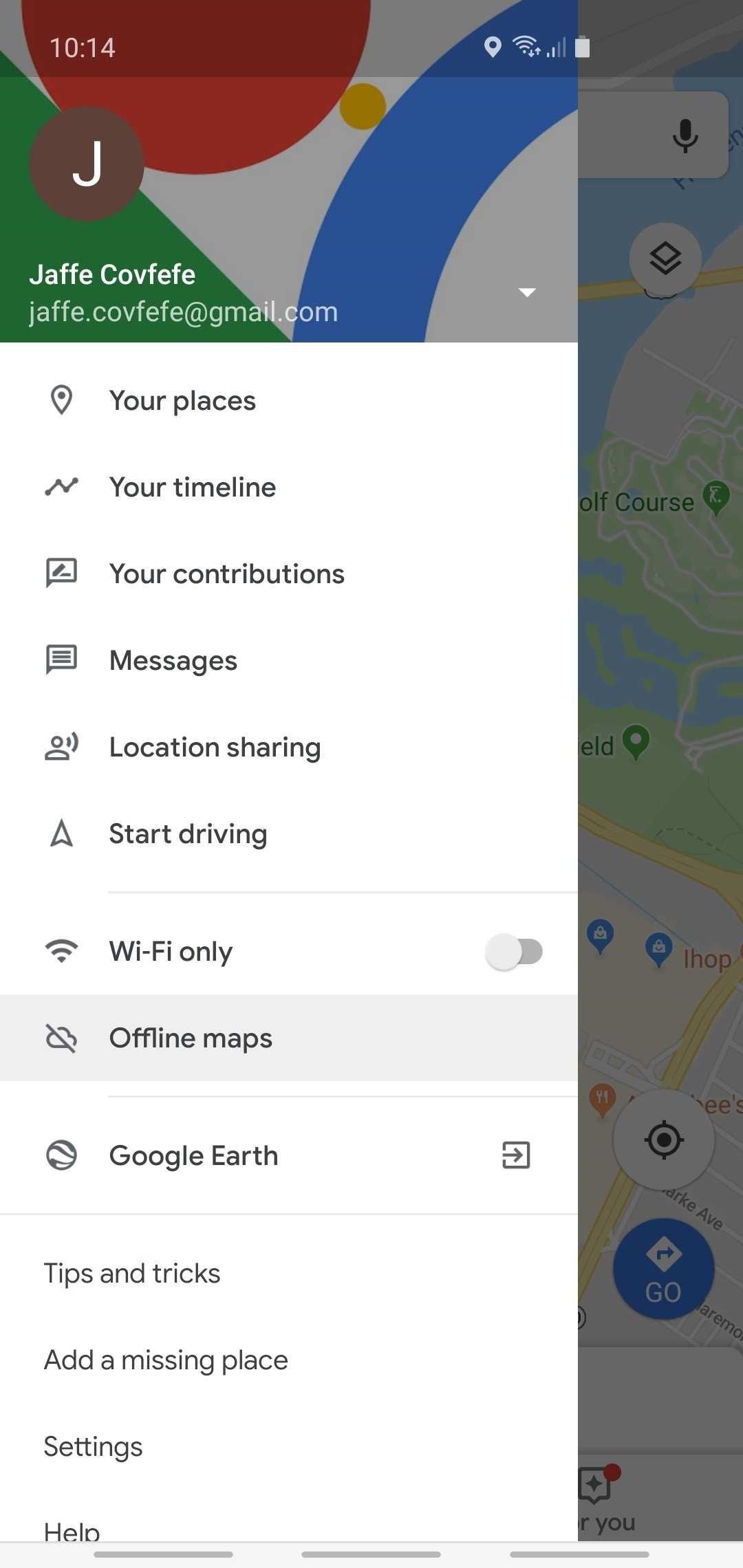
Step 2: Enable Downloading Over Mobile Data (Optional)To download routes using your cellular data, open Google Maps and open its side menu, then tap on "Offline maps." From there, hit the cog shaped settings button in the top-right, and either tap on "Download preferences, followed by "Over Wi-Fi or mobile network" on the popup prompt (Android), or simply select "Over Wi-Fi or mobile network" from the section labeled When to download offline areas (iOS). Don't Miss: How to Measure the Distance Between 2 Points in Google Maps

Step 3: Download Your Desired RouteAt this point, you're ready to download offline maps. If you're using an Android device, open Google Maps and either type your target destination into the search bar or put a pin on it by long-pressing the location. From there, tap on "Directions" in the lower-right corner and decide on a route.With the directions pulled up, tap on the black banner right below the destination entry to download an offline copy of the entire map and all the businesses along your route. After that, you can proceed to the next step. If you're using an iPhone or if you didn't see the black banner on Android, the process of downloading offline maps is a little more tedious, but it's still doable. To get started, open Google Maps and tap on the hamburger menu in the top-left corner, then choose "Offline areas," and select "Custom area" on the following screen. You'll now be shown a preview map that you can move around to center on an area you'd like to download. You can zoom in or out as well, and when you do, you'll see a preview of the area's approximate file size.You can download map areas that are a maximum size of roughly 1.7 GB, so you may need to zoom in if the preview area is larger than that. But once you've picked out an area that you want to access offline, just tap "Download" to save it.

Step 4: Use & Access Your Downloaded MapsIn the future, when you need directions in an area that you've downloaded, but you don't have cellular reception, you'll have no need to worry. Just open your Google Maps app, then the entire map, including streets, businesses, and points of interest in the downloaded area will be visible — even without a connection.As long as you stay within the bounds of your downloaded map area, you'll essentially have a fully functional Google Maps app even without the internet. This means that features like driving directions and search will continue to work, but note that map overlays (like satellite view and traffic data), along with walking, transit biking, or ride share routes will not work without a data connection. Downloaded maps showing up on Android (left) and iPhone (right), even in Airplane mode.

Step 5: Update Your Downloaded Maps Every MonthThere's one more thing you should know about downloading offline areas in Google Maps. Each offline area will expire after a month if you don't update it, which means you'll no longer be able to access the downloaded area without an internet connection. Google does this to save space on your phone and to ensure you're not using an outdated map.However, it's easy to update your offline maps if you want to be able to access them indefinitely. To start, tap the hamburger icon in the top-left corner of Google Maps, then choose "Offline maps" (Android) or "Offline areas" (iPhone). From here, select the downloaded map area, then press "Update" on the following screen. Once you've done that, you'll have offline access to this map area for another month. Please remember that some important traffic data, like construction zones and accidents, will not be available when using offline maps. While it does serve as a great backup in case you run into areas with poor cellular service, it should really only used during those times.This article was produced during Gadget Hacks' special coverage on traveling with your smartphone. Check out the whole Travel series.Don't Miss: The 5 Best Travel-Friendly Phones for Road Warriors, Vacationers & Business FlyersFollow Gadget Hacks on Pinterest, Reddit, Twitter, YouTube, and Flipboard Sign up for Gadget Hacks' daily newsletter or weekly Android and iOS updates Follow WonderHowTo on Facebook, Twitter, Pinterest, and Flipboard
Cover image, screenshots, and GIFs by Amboy Manalo/Gadget Hacks


Phones Leer en español How to use Google Maps offline mode on iOS, Android. Save Google Maps for offline access, so you can navigate the roads even when you're off the grid.


Traveling to Italy with Google Offline Maps If you are planning to travel to Italy or Europe and rent a car it would be a good idea to plan ahead and download maps of the areas that you are going to visit for offline use in Google Maps on your smartphone or tablet.
How to download entire maps for offline use in Google Maps


Google does this to save space on your phone and because you are not using an outdated map. Updating your offline maps is easy if you want to be able to access them indefinitely. To begin, tap the hamburger icon in the upper left corner of Google Maps and then select "Offline Maps" (Android) or "Offline Areas" (iPhone).
Google Maps: How to Use Maps Offline Without Internet | Time
time.com/4203431/google-maps-use-offline-how-2/
To see the areas you've saved and when they expire, open Google Maps, tap the menu icon, and select "Offline areas." Here's how to download an offline map: Launch the Google Maps app on
How to use offline mode in Google Maps with your iPhone or iPad


Once you know how to download Google Maps for offline use, you'll be able to have a smooth, uninterrupted experience even when traveling through a low reception area. Keep in mind that you can't save the whole world. That's Superman's job.
Traveling to Italy with Google Offline Maps - organictuscany.org


To save cell data and battery life, use "Wi-Fi only" mode. In this mode, when you're not connected to Wi-Fi, Google Maps will only use data from the offline maps that you've downloaded. Before you use this mode, make sure you download offline maps. To turn on this mode, open the Google Maps app Menu next to "Wi-Fi only," turn the switch on.
How To: Download Entire Maps for Offline Use in Google Maps


This feature works for both Android and iPhone, but the process is slightly different between the two. Either way, we've got you covered below, so keep reading to find out how to download routes in Google Maps for offline use. Don't Miss: How to View Google Maps Location History on iPhone or Android; Step 1: Enable Location Services
How to save Google maps directions for offline use & travel
erinlyyc.com/2017/05/17/how-to-save-google-maps-directions-for-offline-use-when-travelling/
Android: Use offline areas After you download an area, use the Google Maps app just like you normally would. • Get directions and see routes • Use navigation • Search for locations If your Internet connection is slow or absent, you'll see a lightning bolt and Google Maps will use your offline areas to give you directions. Notes:
How to download Google Maps for offline use - Ting.com

Download areas and navigate offline - Android - Google Maps Help


Google Maps may get whole country offline map downloads as part of a future update so they could pull up the map when there's no internet connection available. Though this isn't something that's
How to use Google Maps offline mode on iOS, Android - CNET


How to use offline mode in Google Maps with your iPhone or iPad. By Roger Fingas Monday, January 23, 2017, 10:11 am PT (01:11 pm ET) One of the continuing advantages of Google Maps over Apple's
Google Maps May Get Whole Country Offline Map Downloads

How To: Scavenge High-Voltage Components from Your Neighbor's Trashed Microwave

How To: Scavenge High-Voltage Components from Your Neighbor's Trashed Microwave

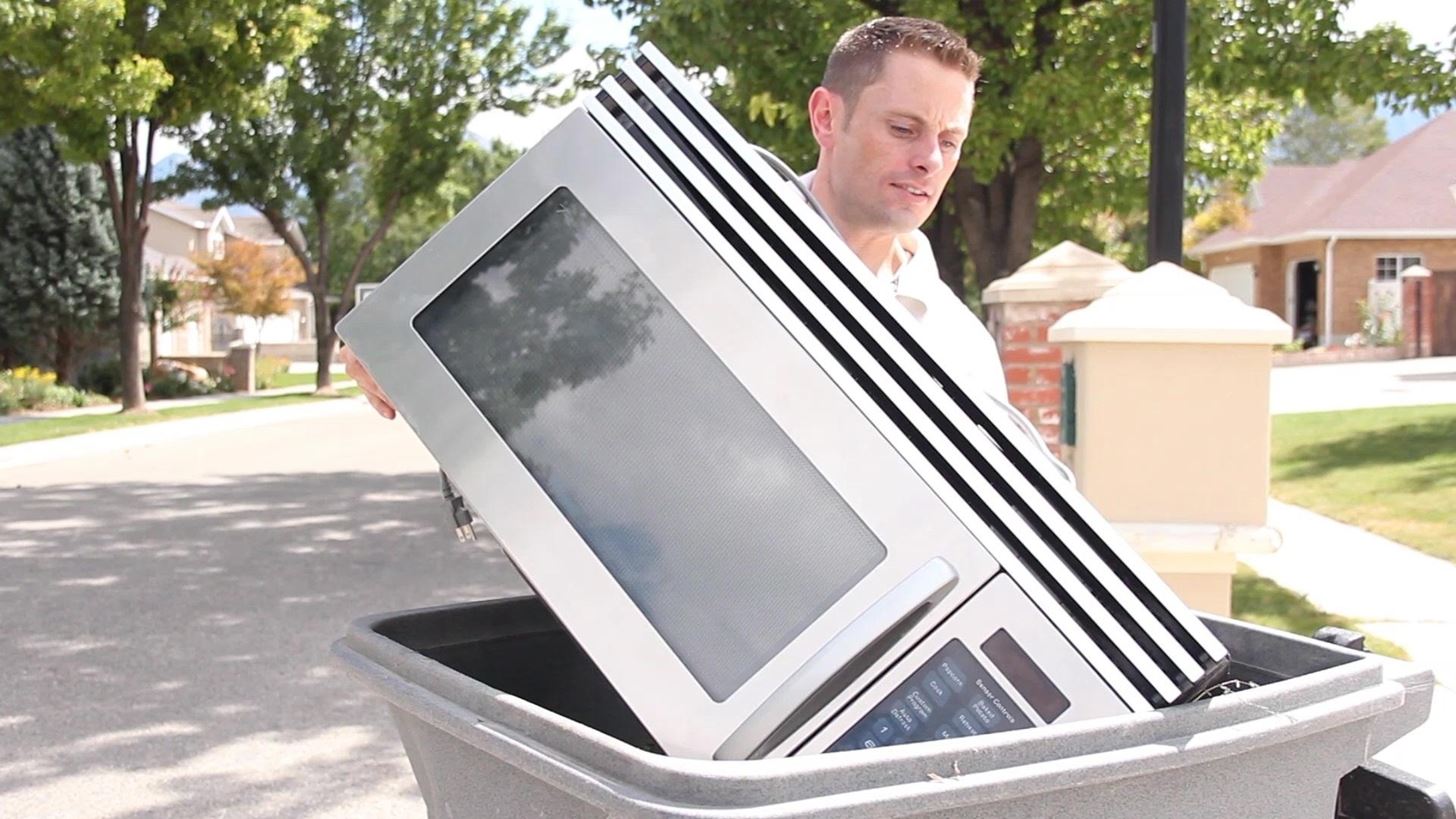
For this project, I decided to rip apart a microwave I found in my neighbor's garbage can to see what was inside. With permission, of course! True story! Please enable JavaScript to watch this video.
The saying goes, "one man's trash is another man's treasure", and with all the parts I found in this abandoned appliance, I felt like I won the lottery! Want to see what's hidden inside your old microwave oven? I started by relocating the microwave to my workbench and plugging it in to test it out. It seemed to work intermittently, so before disassembly, I tried nuking a CD and a 60 watt light bulb. After the light bulb blew up, I unplugged the system, cleaned the mess, and removed every screw I could find. The casing came off easily, revealing some dangerous high-voltage components. I made sure to discharge the high-voltage capacitor first, to relieve any deadly charge that might be lingering. When every screw was removed, I had a whole workbench full of fun and useful components!Magnetron HV transformer HV capacitor Motor/generator Lights Snap switches Transistors Capacitors Diodes Relays AC fan Charcoal filter Piezo-electric buzzer ...and more! I even found two super strong ring magnets that I plan to use in a future maglev experiment! I modified the transformer to shoot lethal arcs of high-voltage electricity, and generate such a high amperage that metal melted on contact! With a little tweaking, it was even used as an AC stick welder.Thanks to these parts scavenged from my neighbor's generous donation, I have a whole new world to explore! The best part is, they were all free!!Haven't see the video yet? You can still see it here!If you like this project perhaps you'll like some of my others. Check them out at www.thekingofrandom.com


Despite numerous reports announcing its stateside arrival, "Final Fantasy Awakening" has yet to show up in the iOS App Store, much to the chagrin of millions of fans in the U.S. Unfortunately, the game seems to be stuck in soft-launch limbo, with no word as to when it'll land stateside. With a
Change Your App Store Country to Download Region-Locked Apps


Export Still Photo in Adobe Premiere Pro. Adobe Premiere Pro is more sophisticated video editing software which I prefer to use. It is even easier to extract your favorite image from this program. Click on a video file in the bottom left quadrant.
Adobe Clip - Free downloads and reviews - CNET Download.com


How To: Bring Your Dead Phone Battery Back to Life with a Portable Solar-Powered Cell Phone Charger News: This Giant Glass Globe Turns Moon and Sunlight into Power—Possibly Even Solar Death Rays! How To: Make a solar cell with a condom How To: Build a Solar-Powered Mini-Synthesizer Wristwatch
11 Best Solar Powered Watches in 2019 - Casio & Seiko Solar


Sometimes, copying files to and from an external drive may be your only option if you want to sync your home and office computers and your company's IT department doesn't allow installation of nonapproved software. In such circumstances, they also might not allow external devices to be plugged in, though, so check with them for your options.
How to Make Your iPhone Play Nice With Your Windows PC


15 Black Friday deals on accessories for all of your new Apple products All the best Black Friday 2018 It also comes armed with a Qi-certified wireless charger and a 5,000mAh battery which
The best Black Friday phone deals of 2018: iPhone XS, Samsung


sorry for the little text box on the left of the screen This video will show you how to jailbreak your iphone 3g using redsnow version 0.9.5 beta. This will unlock home screen wallpapers and


xda-developers Samsung Galaxy S9 Samsung Galaxy S9 Guides, News, & Discussion [HowTo] The Safest Way to Disable All Bloatware on Your Galaxy S9 or S9+ by Xperience Z XDA Developers was founded by developers, for developers.
How to remove bloatware from your Samsung Galaxy S8 - CNET


How To: The Easiest Way to Add Widgets to the Today View on Your iPhone iOS Basics: How to Add Widgets to Your iPhone's Lock Screen & Notification Center How To: Add Custom Lock Screen Widgets to Your Nexus 7, Samsung Galaxy S3, & Other Android 4.2 Devices
How to Rearrange Your Lock Screen Widgets in iOS 10

Using resistor and transistor you can transform any digital camera into accessory fully compatible with Arduino. In this exemplary video I use this to start and stop recording by signal from ultrasound distance sensor.
Slacker and Steve - Nunchucks, Tasers, and Pepper Spray 3/21


This iPhone is also known as sim free iPhone by Apple.The SIM-free iPhone comes without a wireless contract commitment or carrier financing. So please make sure to purchase unlocked i phone. Answered by Neeraj B from Presto
How To Unlock iPhone 7 (Plus) | IMEI Phone Unlock: Official


How To: Move the Obtrusive Volume Indicator Box to Your iPhone's Status Bar How To: Get the Pixel 2's New Google Search Widget in the Dock Using Nova Launcher How To: Make Your Status Bar's Color Auto-Match Current Apps on Your Galaxy S3
Energize Your Status Bar with a Color-Coded Battery Indicator


Google updates Hangouts app to support merged SMS conversations Google has announced that the new version of the app, Hangouts 2.1, is rolling out to all users over the next few days.
Hangouts Future Update Will No Longer Have the SMS Feature


The Music sticker is one of Instagram's best features. With it, you can add music directly to your story, incorporating a high-quality soundtrack to your favorite moments. On June 6, Instagram upped the ante on this feature, introducing live song lyrics that play throughout your story. Karaoke
6 Instagram Hacks for Better Instagram Stories : Social Media


Switch GBoard to the Default keyboard. Tap and Hold on Earth icon from keyboard > Next Keyboard from Popup. This might be useful: Trick to fix Google's Gboard app not working on iOS or Crash. Now, Install and use Google Gboard keyboard app fluently and more efficient on iPhone/ iPad. Don't miss to share your experience with us.
How to Use the keyboard on the Apple iPhone 3G « Smartphones

Action Launcher 101: How to Set Up Covers & Shutters to Get Gesture-Based Widgets & Folders

Action Launcher 101: How to Set Up Covers & Shutters to Get Gesture-Based Widgets & Folders
Most Android launchers limit you to three choices: Icons, widgets, and folders. It's better than nothing, but it's still pretty hard to find the best look without overcrowding your home screen. You could fill everything up with icons, but then you'd have an iPhone. You could toss everything into folders, but that would always require an extra tap. You could mix in some widgets, but that would take up valuable space. So what do you do? Action Launcher has the answer.Two of the best features in developer Chris Lacy's popular home screen app are Covers and Shutters. On the surface, they look and behave exactly like regular icons, so when you tap them, the associated app will open. However, when you swipe up on one of these icons, Covers will expand to show more icons like a folder, and Shutters will reveal a widget.Ultimately, this gives you the ability to access key information with a quick glance, or to group apps together to save space on your home screen — in other words, all of the benefits of widgets and folders, but without the drawbacks. So if you're tired of widgets taking up space, or if you're done with folders breaking up the look of your home screen, I'll show you how to set up Covers and Shutters below.Don't Miss: How to Mix and Match Icon Packs in Action Launcher
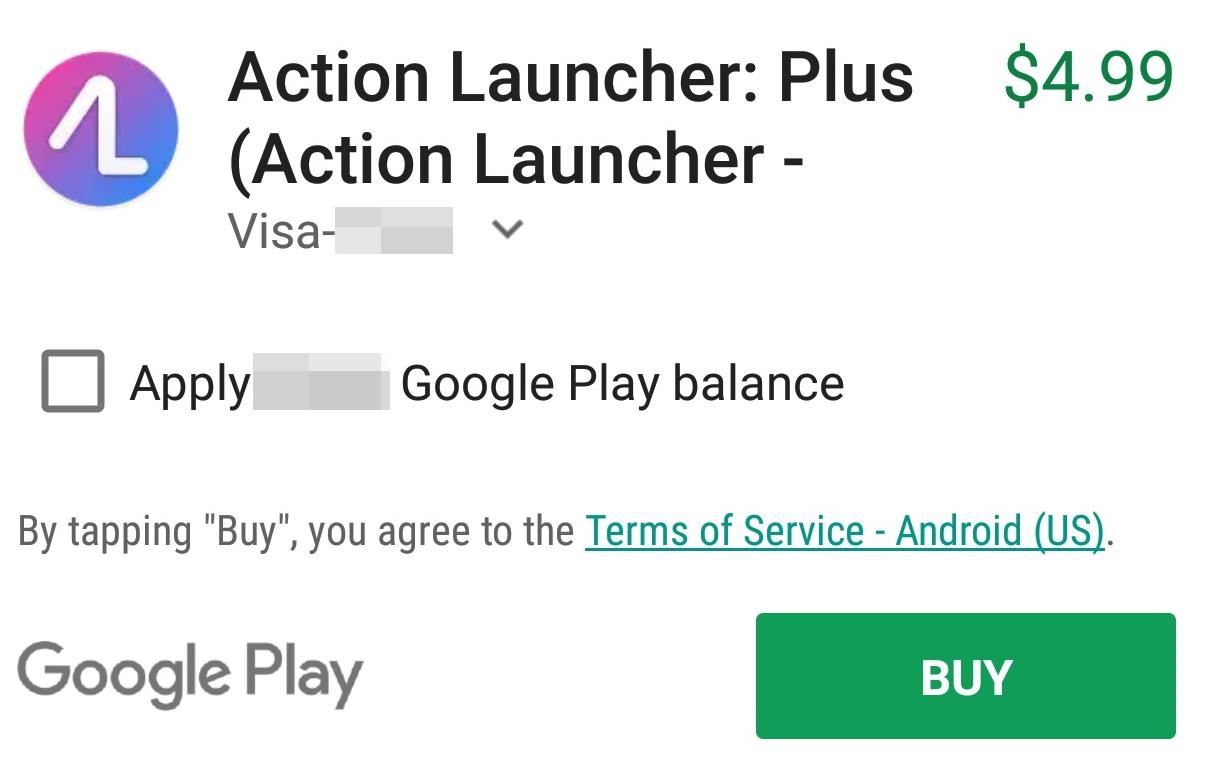
Step 1: Install Action Launcher PlusCovers and Shutters are a pro feature, so if you haven't already, install Action Launcher to begin. Next, head to Action Launcher's main settings menu by long-pressing any empty space on your home screen, then choosing "Settings." From there, tap "Get Plus" in the top-right corner, then press "Upgrade to Plus" to activate the pro features. From there, confirm your purchase, then return to the app's main settings menu.

Step 2: Enable Shutters & Auto-CoversNext, select "Folders & Shutters" from Action Launcher's settings menu, then scroll down and make sure the "Enabled" switch is in the Shutters section is toggled on. From there, we also recommend turning on the "Auto-Covers" option, which makes new folders that you create in the future automatically turn into Covers.
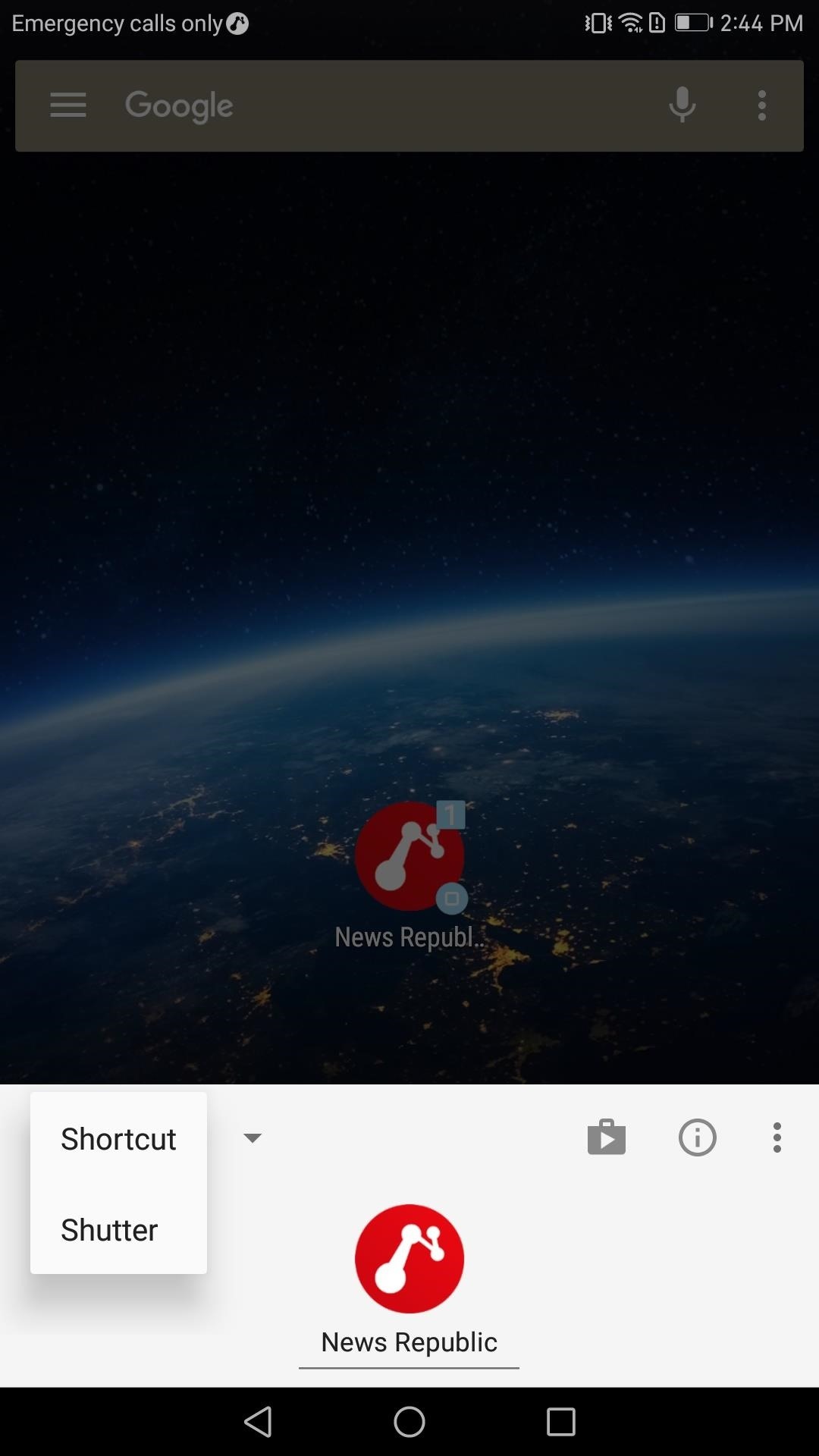
Step 3: Create & Use ShuttersFrom now on, if an icon that you add to your home screen has a widget, it will automatically become a Shutter. But to verify that the Shutters feature is enabled for your existing icons, long-press any app on your home screen and select "Edit" from the popup. A menu will emerge from the bottom of your display, and you'll see either "Shortcut" or "Shutter" next to a drop-down arrow.If "Shutter" is selected by default, you're good to go. However, if "Shortcut" is enabled, then this application doesn't have a widget. If this is the case, you can manually select "Shutter" instead, then press your back button, at which point you'll be prompted to select a widget to associate with this app.With the Shutter set up, swipe up on the icon to bring up the widget. If this is your first time enabling the widget, you may be taken to a menu where you can configure the widget. After the initial setup, anytime that you swipe up on the icon, its widget emerges.
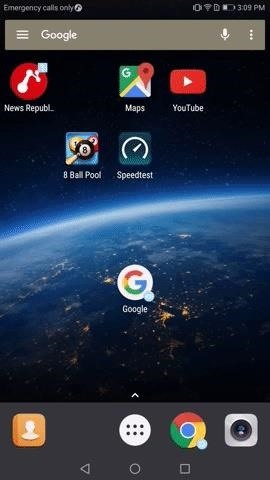
Step 4: Create & Use CoversNext, let's set up some Covers. Create a new folder on your home screen following the traditional method of dragging an icon on top of another icon, then letting go. As you may have noticed, the icon you dragged disappears behind the other icon — a Cover has been created! Rather than showing a folder, it shows only the original app's icon instead.From there, you can add more apps to your pseudo-folder by dragging them onto the initial icon just like you would with a regular folder. Then, if you swipe up on the icon, it will bring up the contents of the folder. If you want to use the app shown, just tap the icon and it will open as normal.If you already have a folder on your home screen and wish to convert it to a Cover, tap the folder to reveal its contents. From there, tap the three vertical dots in the bottom-right corner of the folder, then choose "Make Cover," and now your folder is a Cover. Immediately the view will change, and your collapsed folder will now display just the first app in the folder.
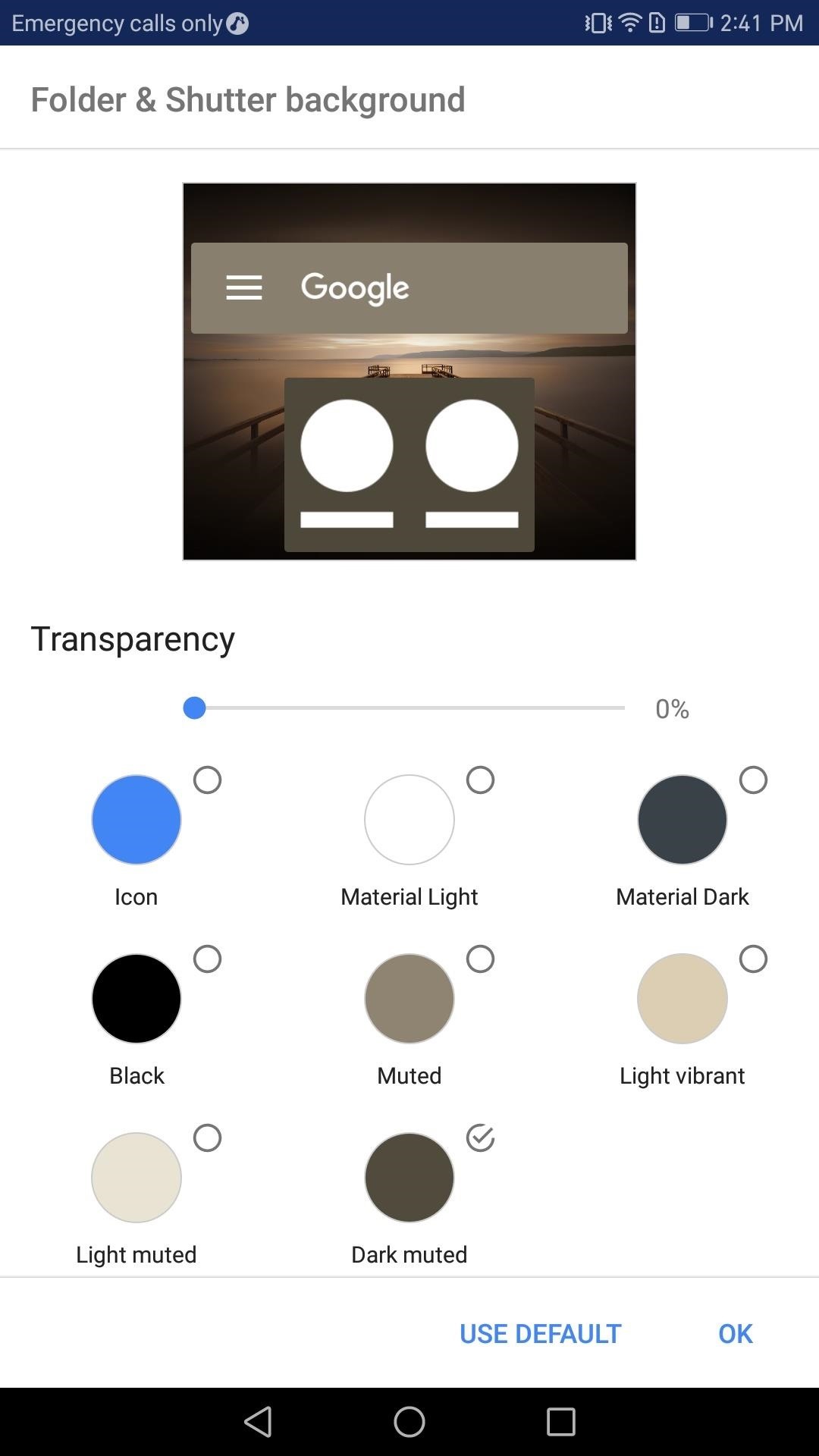
Step 5: Customize Shutters & CoversNow that you have both Shutters and Covers enabled, let's customize the experience. To start, return to the "Folders & Shutters" menu as depicted in Step 2, then choose "Folder & Shutter background." In this menu, you can choose the background color and transparency of your Shutters and Covers.Next, return to the previous screen and select "Open gesture." This will present you with three choices as to how Shutters or Covers are opened. You may choose to swipe up, double tap the icon, or both. With Shutters and Covers, you can indeed minimize the clutter of a typical home screen without sacrificing functionality. What do you think about Shutters and Covers? Are you using these features on your home screen? Let us know in the comment section below.Don't Miss: How to Set Up Action Launcher's 'Quickpage' Feature for an Easy-Access Home ScreenFollow Gadget Hacks on Facebook, Twitter, Google+, YouTube, and Instagram Follow WonderHowTo on Facebook, Twitter, Pinterest, and Google+
Cover image and screenshots by Jon Knight/Gadget Hacks


Truecaller reveals the last time your phone was used to your contacts. For example, I can view the "Last Seen" time of any contact that also has Truecaller installed. Nope, it is not the last time you used the app itself like WhatsApp, but your actual device. Plus, it does this without notifying you.
Last Seen In Truecaller Means Page 3 | What Is Availability
fireworks2017.com/news/last-seen-in-truecaller-means-page-3
PSA: TrueCaller Is Sharing Your Phone Activity « Smartphones Mar 17, 2017 TrueCaller is sharing your phone activity by revealing the last time your phone was and allows it to sync their contacts, their "Last Seen" time is visible in the application. This means your status would
A Detailed Discussion About Truecaller Privacy Risk - GEEKOFIA


We already dove into the 15 best new features in iOS 13.We also covered nearly 70 new iOS 13 features that Apple didn't reveal during its big keynote presentation on Monday. Now, it's time to
New features available with iOS 12. - Apple


In this article, I'll explain what tethering is, how to tether an iPhone to another device, and how setting up a personal hotspot affects your wireless data plan. What Is Tethering? Tethering is the process of connecting one device to another to connect to the internet.
10 Tips to Reduce iPhone & iPad Personal Hotspot Data Usage
osxdaily.com/2012/03/28/tips-to-reduce-iphone-ipad-personal-hotspot-data-usage/
10 Tips to Reduce iPhone & iPad Personal Hotspot Data Usage Mar 28, 2012 - 16 Comments Personal Hotspot is one of the best features of an iPhone and iPad, allowing you to share the devices 3G or 4G LTE internet connection with up to five other connected devices through wi-fi, be them Macs, iPads, iPods, or PC's.
Why Apple's Personal Hotspot Is a Good Idea—and How to Use It


How To: Get Sony's New Xperia Z3 Keyboard on Almost Any Android Device How To: Root Your Nexus 7 Tablet Running Android 4.4 KitKat (Mac Guide) How To: Mirror & Control Your Android's Screen on Your Windows PC How To: Get the Android L Launcher on Your Nexus 5 or Other KitKat Device
Enable Chromecast Mirroring from Any Device - xda-developers


How To: Get Dark Mode in Slack on Your iPhone or Android Phone How To: Get Dark Mode on Instagram for Less Stress on Your Eyes When Browsing Pics & Videos News: Facebook Is Making It Easier to Post AR Content in Its News Feed How To: Enable Dark Mode on Overcast for iPhone
Enable Dark Mode in Your Favorite Apps « Gadget Hacks


News: Always-Updated List of Phones That Will Get Android Pie How To: Watch Apple's WWDC 2018 Keynote for the New iOS, ARKit & Apple Watch Reveals News: The Latest Razer Phone 2 Leaks Suggest Project Linda Might Actually Happen
Gadget Hacks News — Page 5 of 55 « Gadget Hacks

How to Add an Image to Your Gmail Signature - Lifewire


Over the years, he has come up with a handy checklist that makes traveling international easier and more efficient. Here are his tips. When it comes to travel, heading abroad is an entirely different animal from your typical family beach vacation.
How to prepare your smartphone for a trip - USATODAY.com


iOS 12 comes with some amazing new features, like ARKit 2 and Memoji, but it's still a new operating system and you might not be happy with it. If for any reason, you need to downgrade your device back to a prior version, that's fine. What's more, downgrading is easy: All you need is an archived
How to Downgrade iOS: 13 Steps (with Pictures) - wikiHow


How to Save Custom Shooting Presets in Filmic Pro So You Don't Have to Adjust Settings Later for Similar Shots. 03 Friday May 2019
How To: Save Custom Shooting Presets in Filmic Pro So You Don


Here at Macgasm, we need to take screenshots of Mac apps all the time. Whenever you take a window screenshot on the Mac (command-shift-4, followed by the spacebar), it captures the window contents and the drop shadow beneath the window, and saves it into a transparent PNG file on your desktop. This
How to take Windows screenshots with drop shadow


If you have a jailbroken iPhone, it's a cinch to upgrade your dock's allotment, and we've previously shown you how to get an extra app down there with the tweak Five Icon Dock. Today, we'll be taking advantage of the bigger display sizes on the iPhone 6 and 6 Plus by upgrade to a six-app dock!


Looking for methods to share a link (URL) to your photo album on Google+™ with friends and family , just follow the easy steps shown in this video. Content in this video is provided on an ""as
Google Drive - Share photos with Friends - YouTube
How To: Animate & Share Drawings on Your iPhone Without Any Third-Party Apps

How To: Animate & Share Drawings on Your iPhone Without Any Third-Party Apps
Creating doodles on an iPhone is made easy thanks to the "Draw" tool in Notes and "Digital Touch" for iMessages, but these are limited in scope. Drawing in Notes has no animated effects, and while Digital Touch does, its drawing tools are lacking and the animations can only live within iMessages. If it's animations you want, Apple has another app that can help you create them.Although Pages, the Apple-designed productivity app, is intended for word processing needs, a powerful new "Animate" tool can help your doodles come to life in a few easy steps. While it's not quite like the animation abilities that some popular third-party apps have, Pages does let you create a time-lapse of your drawing — basically a replay of every line and stroke you drew from start to finish.Don't Miss: 18 Tips for Apple's Screenshot Editing Tool on Your iPhone Before we dive into the following, make sure you've installed Pages via the App Store and are updated to at least Pages version 42, which contains the animation tool, released on Sept. 17, 2018. As a reminder, Pages is one of three apps in the iWork suite, Apple's version of Microsoft Office, and these apps are free for anyone with an Apple ID linked to the App Store since April 2017.

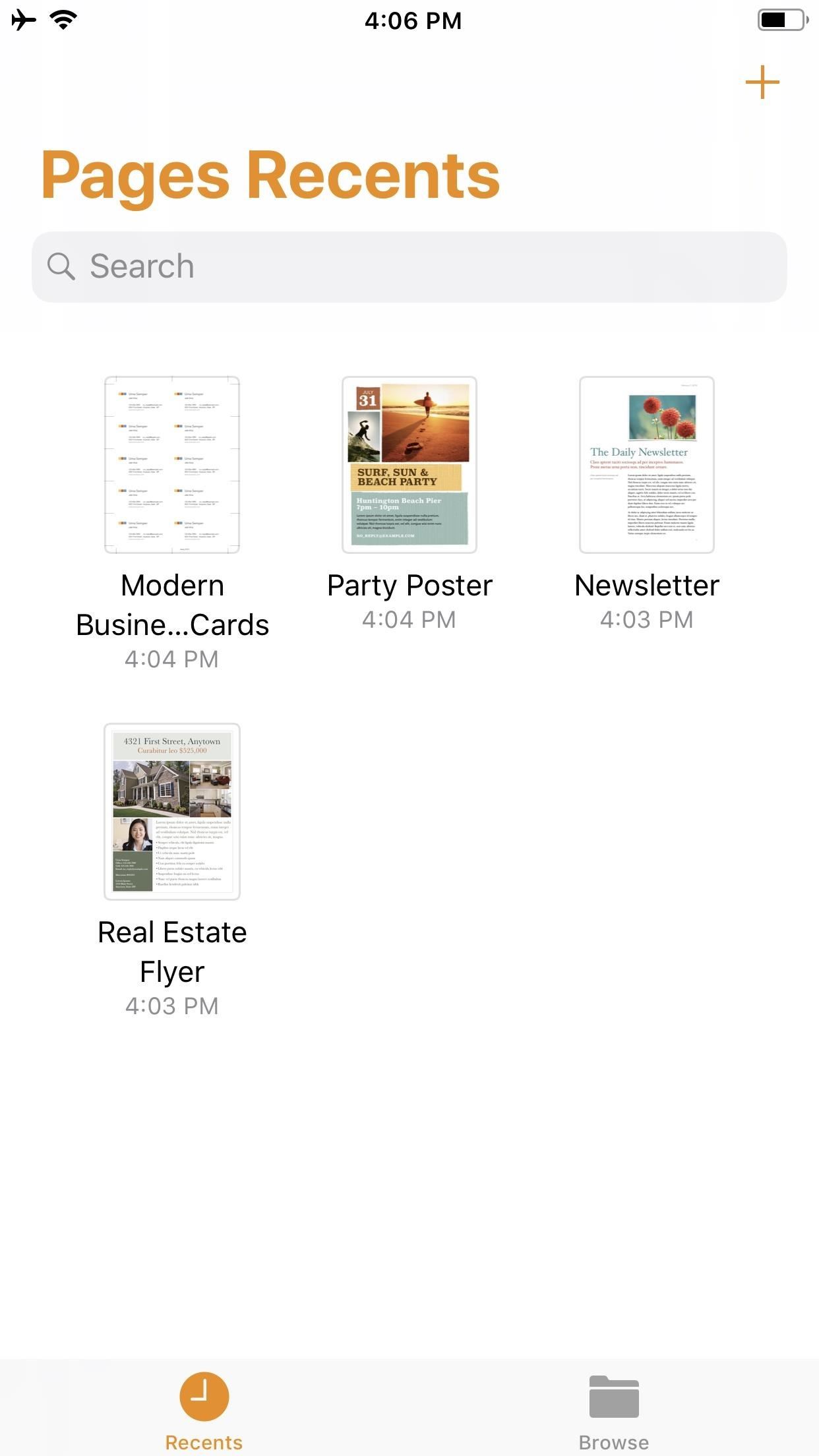
Step 1: Start a New DocumentOnce you launch Pages, create a new document by tapping on the "+" icon in the top-right of the screen. This will bring up the Choose a Template screen. For our purposes here, tap on something simple like "Blank" which will be the first option at the top of the screen.

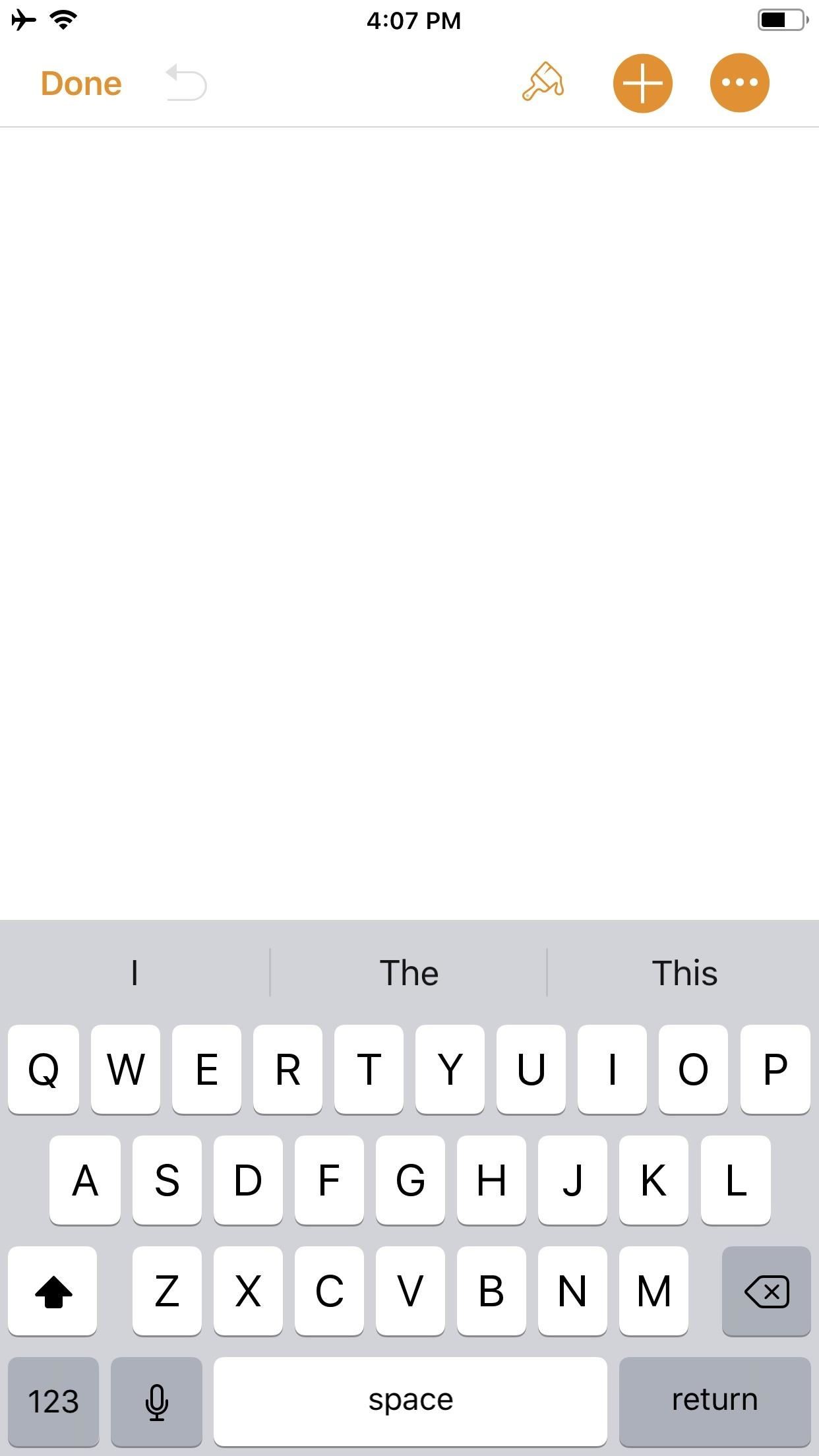
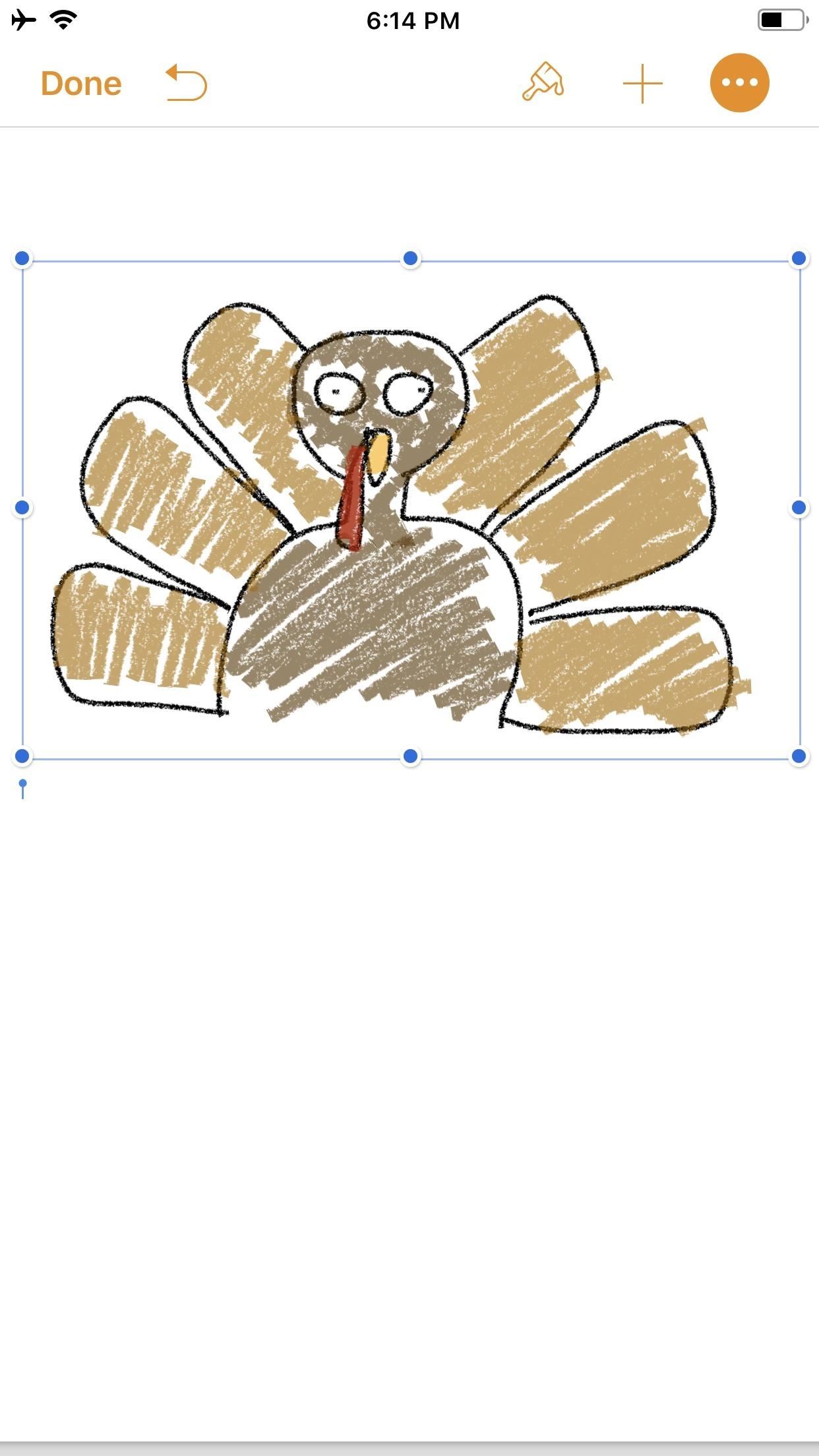
Step 2: Create an IllustrationYou should now be staring at a blank document, complete with a blinking cursor. Tap on the "+" icon in the top-right corner to view the objects menu. Once there, make sure you're on the "Media" tab (the fourth tab with the photos icon), then tap "Drawing" near the bottom.The drawing tools will appear and you'll see an orange header above. If you're in a word-processing document, like "Blank" would be, a white canvas will appear. If you're in a page layout, like a newsletter or poster, you'll just be prompted to draw on the page wherever you'd like. Your drawing tools appear at the bottom of the screen, and this entire row can be toggled up or down by tapping on the drawing icon (a pen within a circle) in the top-right. As you illustrate, keep in mind that the order in which you create the image will be preserved in the animation later. Every line, stroke, and fill you make will be presented in the order that you draw them. Think of it as a time-lapse of your drawing process.When you are finished with your doodle, tap on "Done" in the top-right corner.

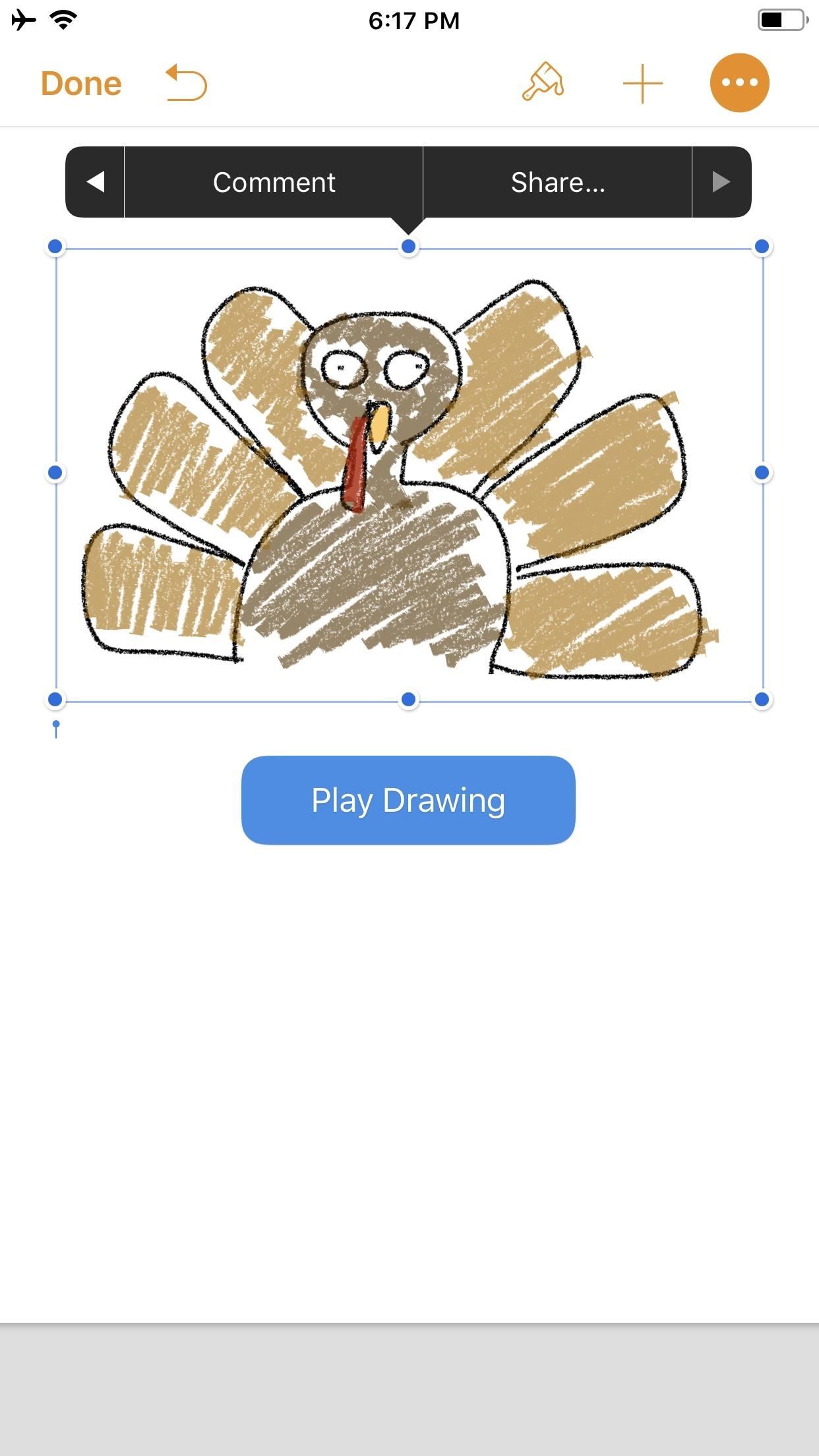
Step 3: Animate Your IllustrationYour new illustration should appear in the original document screen. It should already be selected if you have just tapped "Done" (a light blue rectangular frame appears around the illustration), but if not, tap on the drawing to select it.Once selected, tap on the "Paintbrush" icon in the top-right to access its options. Note that if your image is near the top of the document, when you tap on the image, the black contextual menu will pop up and cover the "Paintbrush" icon. This is because the image is, after all, a part of a Pages document. Just tap the drawing again to hide the contextual menu and reveal the "Paintbrush" icon.In the options menu, make sure the "Drawing" tab is selected, then toggle on "Animate Drawing" below it. New options will appear for "Duration" and "Loop." The former allows for an animation as short as 0.10 seconds to as long as one minute. Basically, you can choose the speed of the animation (i.e., how quickly your illustration blossoms). The latter is if you want the animation to repeat, or loop, similar to the "Loop" for Live Photos effect (or like "Boomerang" in Instagram). To preview the animation, tap "Play" under "Loop," and continue to make adjustments, until you get it exactly how you like it. You can even adjust the "Opacity" at the bottom, which gives you control of the animation's translucency.When ready, tap on "Done" in the top-left corner to close the menu (in landscape mode, tap anywhere on the document or hide the options menu with the down arrow to see "Done"). Now, whenever your drawing is selected on the page, a blue "Play Drawing" button will appear so you can quickly watch the drawing's progress in action whenever you want.

Step 4: Create & Share Your Animated VideoNotice the options that appear in the black contextual menu above your illustration when you select it. Tapping on "Share..." (the last option) will bring up two additional choices: "Share as Image" and "Share as Movie." Tap on the latter.The share sheet will pop up after the movie is done preparing, allowing you to share it as a video via AirDrop or to an app such as Mail in the share extensions row. You can also choose from the actions row to "Save to Files" or "Copy." I prefer to use "Save Video" so the animation is downloaded to the Photos app. This way, I have a local copy of my video along with the same sharing options from the share menu.The file format is .m4v, making it compatible with many platforms. Keep in mind that the above steps are a hack to generate an animation using Pages as a means to a video end. The intended purpose, as advertised by Apple, is to incorporate pizzaz to a document. Thus, if you incorporate an illustration with text and export it as a Pages document to other iOS/macOS users, any animation that has been toggled on will be retained for playback. Otherwise, if the document is exported as a format that is not able to handle video — such as a PDF — the image will be retained but solely as a still, so no animation option will be present.Don't Miss: Quickly Save & Markup PDFs of Notes, Webpages & More on Your iPhoneFollow Gadget Hacks on Pinterest, Reddit, Twitter, YouTube, and Flipboard Sign up for Gadget Hacks' daily newsletter or weekly Android and iOS updates Follow WonderHowTo on Facebook, Twitter, Pinterest, and Flipboard
Cover photo and screenshots by David Chien/Gadget Hacks


What's New With Android 8.0 Oreo Part 10: Lock screen clock updated Last week, we documented a number of changes included in the Android 8.0 Oreo beta for the Galaxy S8 —and now we have another one to add to our list: the Lock screen clock changes color to match the wallpaper you're using.
How to Set a GIF as the Wallpaper on Your Android's Home or


Christmas Scavenger Hunt Ideas. A Christmas scavenger hunt is a fun holiday idea for any event from office parties to family gatherings. Whether you are sending someone on a search for their Christmas gift or a treasure hunt around the neighborhood, scavenger hunts can add excitement to all your festivities.
Vacation Vacation Photo Scavenger Hunt Ideas - Mommysavers


not sure what happenedI did reboot my Touchpad (but the App Catalog still wouldn't run) and then let it sit for several days untouched. When I came back the App Catalog was running and there wasn't an update message either (also ran the Update Check manually to make sure).
hp tablet wont install apps - HP Support Community - 2804633


For Android users, there are so many apps that can help you to be remained undetected while reading your message. Some of the most popular in Google PlayStore are Unseen For Facebook, No Last Seen, Unseen Messenger, Invisible Chat for Facebook, and many others. Read their details and reviews and decide which one you want.
Make sure your Facebook Messenger friends don't - Mashable


The Night Vision Goggles work outdoors or indoors in complete darkness and were built for under $150 Special thanks to the Cast: 👥Chandler Lambros (girl in white t-shirt)
DIY: Make your own Night Vision Goggles! - The Outdoor Adventure


How to Make Your Own Pneumatic Candy Cannon How To: Make a PVC Hand Pump to Move Water, Compress Air, & Create Vacuum How To: Build a high-powered air cannon that shoots rolled up T-shirts How To: Make a Super Cheap One-Way Check Valve
Build A Powerful Hand Pump From Scratch With PVC Pipe


Multiple Social Networks Video Uploading in One Go! Vid Octopus is a video distribution and sharing app to upload video to social media for content creators, advertisers and for anyone who wishes to upload their videos to multiple video hosting sites and social networks like YouTube, Facebook, Dailymotion, Dropbox, in one go.
Vid Octopus - Video Uploader - download.cnet.com


Every time you close or swipe an app away on your iPhone, Closing Apps to Save Your Battery Only Makes Things Worse. a reset. Best of all, with no apps running, your battery's in great
How to Kill or Force Quit Apps on iPhone 8 and iPhone 8 Plus


The only thing you need is to have Android Device Manager enabled on your device (before you locked yourself out of your phone). If you have a Samsung phone, you can also unlock your phone using your Samsung account. Forgot your Android lock screen pattern, PIN or password? Here's what to do
How To Unlock Pattern Lock On Android Phone (3 - Safe Tricks


Then why not use the iPadian software to run iPhone apps on PC? Yes, this simple iOS emulator helps you run your favorite iOS apps and games directly on your Windows Desktop without needing an
How to Download iPad Apps From iTunes on Your PC or Mac


While Google didn't flip the switch on this new feature until Lollipop was released, it turns out they had been working on it for quite some time. Developer arpruss discovered an early build of this new feature hidden deep in Android 4.4 KitKat's code, then quickly set about the task of making an app to enable it.
How To: Use Android Lollipop's Smart Lock feature on KitKat


Unlocked Treo 650 wont send text messages Im using an unlocked Cingular Treo 650 on another network. I can recieve - Palm Treo 650 Smartphone question
Palm Treo 800w Discussions - Cell Phone Forums


Facebook is powerful and affluential, even when it comes down to its applications. But some applications are just downright annoying! With the new layout and other changes affecting Facebook recently, you can take ease in the fact that blocking and unblocking Facebook applications is still as easy as before.
How to Block and Unblock Facebook App or Game Easily


How to Build a Foxhole. Author Info. Updated: June 26, 2017. Explore this Article Steps Ask a Question Related Articles. wikiHow is a "wiki," similar to Wikipedia
Foxhole radio - Wikipedia