News: 24 Reasons Why You Shouldn't Install iOS 12 Beta on Your iPhone
This year's big iPhone update, iOS 12, aims to solve many of the issues that arose during iOS 11's controversial, buggy tenure. With that in mind, it may be tempting to jump on board the new software immediately and leave iOS 11 in the dust for good. Here are some reasons why you might want to reconsider joining the iOS 12 beta.Should you switch to the iOS 12 beta, which is available for developers and public beta testers, you might run into more issues than iOS 11 has as a whole — bugs, glitches, compatibility issues, and other drawbacks. That's because we're still in the very beginning stages of the beta program, so iOS 12 has a lot of work to do in order to live up to Apple's hopes of a smooth-running mobile OS like back in the days.Now, these qualms aren't to say that iOS 12 is necessarily bad or that it won't surpass iOS 11 as the superior operating system. However, updating your iPhone can be a big change and can be a hassle to undo unless you've taken the proper precautions. So before you decide to bite the bullet and update your iPhone, make sure to check out all the problems below first.Don't Miss: How to Downgrade from iOS 12 to iOS 11.4 on Your iPhone Note: The latest versions out include the developer beta 12 and public beta 10.
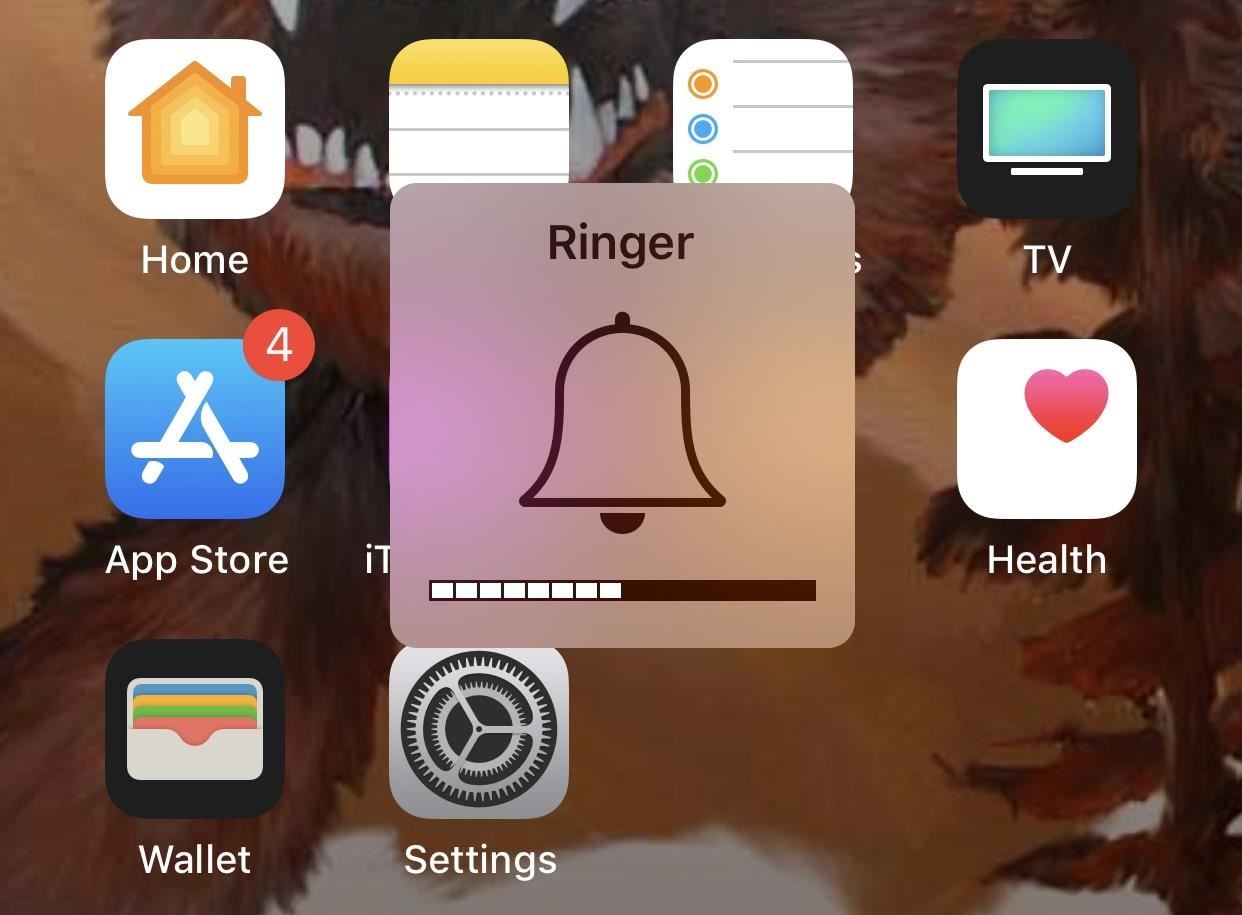
1. The Volume HUD Is Still GarbageWe're upset, too. While we all hoped Apple would work to simplify and minimize the volume HUD, the classic big box is still here to block our screens while changing our iPhone's volume in some instances. (Affects all betas.)
2. Notifications Are Hit & MissThe iOS community held a collective celebration when it was announced that iOS 12 would bring notification grouping back to iPhones and iPads. When it works, the new system really cleans up the notification center, allowing you to focus on messages and alerts on an app-by-app basis.The problem is, it doesn't always work. We've had conflicting experiences here, especially with third-party apps. Apple's native apps seem to work more frequently than, say, Facebook Messenger, but both suffer from grouping failure. When and why it works when it does is a mystery, one that will hopefully be solved and smoothed over in future betas. (Affects all betas.)
3. The Siri Shortcuts App Is for Developers Only Right NowSiri Shortcuts is arguably one of the most exciting new features to hit iOS devices this year. However, beta testers won't be getting their hands on the customized fun with the Shortcuts app, unless they happen to be approved developers. (Affects all betas.)If Siri shortcuts interested you and you're not a developer with access, consider checking out Workflow in the meantime, which is basically the same thing minus Siri compatibility.Don't Miss: Workflow Tips & Tricks to Get Started with iPhone Automation
4. Siri Shortcuts on HomePod Might Result in an Error MessageAgain, whether or not you're using custom-built shortcuts from the Shortcuts app or suggested ones from Siri, they might not work on the HomePod. (40834728: Affects dev beta 4–11 and public beta 3–9.)
5. Your iPhone Could Freeze Up at Any TimeIn our short experience on the beta, we've already seen three iPhones freeze up without warning. Your iPhone can get stuck on the spinning wheel screen for upwards of 10 minutes before fixing itself. We aren't sure what causes this yet, but in two cases, AirDropping documents triggered the freeze up. (Affects all betas.)
6. Group FaceTime Doesn't Work for EveryoneWhile Group FaceTime might be one of iOS 12's most exciting features, it won't be working correctly on all devices running the beta. Apparently, only video and audio calls work for the iPhone 6 and newer, whereas the iPhone 5S, 6, and 6 Plus, as well as the iPad mini 2, iPad mini 3, and iPad Air, only support audio at this time. Let's hope that gets ironed out in future betas. (Affects all betas.)
7. Group FaceTime Doesn't Work Between Different BetasIf you're on dev beta 2 or the public beta, you will not be able to initiate a Group Facetime call with users on dev beta 1, and vice versa. To fix this, simply make sure everyone is on the latest betas version. (39873802: Affects all betas.)
8. Camera Effects in Messages Doesn't Work for EveryoneWhile more iPhones get access to Camera Effects in Messages, the list is still limited. Only iPhone SE and iPhone 6S and later can use the new effects, while, once again, no iPad can at all. (Affects all betas.)
9. Camera Effects in FaceTime Doesn't Work for EveryoneFor using Camera Effects in FaceTime, it only works right now for the iPhone 7 and later. No iPads either. (Affects all betas.)
10. T-Mobile Might Drop Your CallIf you use Wi-Fi calling on T-Mobile, you'll want to be careful. Apple claims your call could be dropped when moving from a Wi-Fi connection to cellular one. Why this issue only pertains to T-Mobile isn't known. (39251828: Affects all betas.)
11. Screen Time Settings Will Reset When UpdatingIf you're running the dev beta 1 and update to dev beta 2 or the public beta, all of your Screen Time settings will be reset. That means you'll have to reactivate and reconfigure Screen Time, which may be a pain depending on how much you had configured to your needs. (Affects dev beta 2–11 and public beta 1–9.)
12. 'Picked Up iPhone' Data Can Be Skewed by Other DevicesIf you have multiple iPhones on one iCloud account, your "Picked Up iPhone" data can be skewed since you'll confuse Screen Time into thinking that data from each device counts as one iPhone. No word on how that'll affect future updates when this issue is fixed. (39917173: Affects all betas.)
13. Voice Memos Might Not Sync Between DevicesAs if not being able to sync to iTunes was enough, if you have multiple devices connected to your iCloud account, the voice memos won't sync between them. Even if you go to Settings –> iCloud –> iCloud Drive –> Voice Memos and enable it, it still won't work. (39701488: Affects dev beta 2–11 and public beta 1–9.)
14. The Measure App Might Be in a Random FolderMeasure is an awesome new tool that uses AR to measure real-world objects. However, you might have trouble finding the app, since occasionally iOS will hide it in a random folder. If Measure does not appear for you on the home screen, swipe down and search for it with Search. (Affects all betas.)Don't Miss: How to Measure Real-World Objects with Your iPhone in iOS 12
15. Dictionary Is Unavailable for Some UsersIf you try to find the definition of a word, either in a Search or using "Look Up" on selected text, you might not find one from Apple. While Siri Suggestions will offer you websites and other content related to your search, Dictionary may be totally unavailable on iOS 12. Not all users experience this, though. (Affects all betas.)
16. Inviting iOS 11 Users to a Home May Not WorkWhen it comes to HomeKit, whenever you try to invite someone using iOS 11 to your home and they have multiple email addresses associated with their Apple ID, it may not work. If this happens, you can try to send the invite to one of their other email addresses or their phone number. (41033550: Affects dev beta 2–11 and public beta 1–9.)
17. Gmail's Notification Badge Remains After Checking EmailNotification badges quickly let us know we have unread or unattended content in certain apps. Once you view that content, the badge intuitively disappears. That's not the case for Gmail in iOS 12, as the notification badge remains after viewing new email. According to a MacRumors thread, force-quitting and relaunching Gmail is the only way to remove the notification badge at this moment. (Affects all betas.)
18. Clash Royale Lags with Low Brightness (iPhone X Only)The iPhone X doesn't seem to run Clash Royale well on the iOS 12 beta yet, at least with the brightness all the way down. If you need to play the game in the dark, consider keeping the brightness just shy of zero, otherwise, you'll hand your opponent a big, laggy advantage. (Affects all betas.)
19. Not All Apps Are Optimized YetApp developers design their apps to work with the system your iPhone is running. With a new, major update, those apps need to be optimized to run on the new software, otherwise, performance will be less than ideal, to say the least.While developers gain access to the iOS 12 beta, not all of your favorite apps may be optimized in a timely fashion, as you can probably already tell from some of the issues in some of the most popular apps. You can almost count on their being issues with third-party apps on top of any problems you encounter from the beta itself. (Affects all betas.)More Info: All the Apps That Are Buggy or Broken on iOS 12 Beta for iPhone
20. Siri Might Open Your Ride-Sharing App When Asking for an ETAIf you're asking Siri for an ETA for your ride-sharing driver, you might not get an answer. Instead, Siri might just open the app, if you have multiple ride-sharing apps installed on your iPhone. Apple's workaround is to simply ask Siri for the ETA again. (42324032: Affects dev beta 5–11 and public beta 4–9.)
21. Your Children Can Get Around Screen Time RestrictionsAccording to Apple's release notes, children will be able to sign out of iCloud or change the system time to get around Screen Time restrictions. The company doesn't go into specifics, but does suggest you change your Screen Time password upon updating to dev beta 7–11 and public beta 6–9 (42879250).
22. Traffic Data in Maps Might Not Be DisplayedIf you rely on traffic data in Maps for your commute, you might be out of luck in the iOS 12 beta — Apple's latest betas come packed with a bug that might not display this data in Maps. Luckily, there is a workaround — tap the "i" to view Maps Settings, then toggle the Traffic switch on. (43254370: Affects dev beta 9–11 and public beta 7–9.)
23. Downtime Start & Stop Times Might Change UnexpectedlyIf you set up your start and stop times for Downtime before updating to dev beta 9 or public beta 7, they might change unexpectedly. Apple's workaround for the issue is to update all devices associated with the iCloud account to dev beta 9 or public beta 7 and reset the start and stop times for Downtime. (43393555: Affects dev beta 9–11 and public beta 7–9.)
24. A Laundry List of Developer IssuesiOS 12's release notes for the betas contain an overflowing compendium of issues pertaining to developers. While developing apps for iOS 12 might be worth dealing with these bugs, you should know what can and will be thrown your way in the process:Various CoreGraphics calls have been hardened against continuing with invalid parameters. In iOS 12 beta, these calls may now return NULL or return early. (38344690: Affects all dev betas.) When a queueTransaction is performed on applicationQueuePlayer to modify the position of a song, the queue returns unchanged. (39401344: Affects all dev betas.) When using Messages in the iOS Simulator, a message might not be delivered from User A to User B. (40916530) — Workaround: Send a message from User B to User A. You might encounter issues with systemLayoutSizeFitting(_:) when using a UICollectionViewCell subclass that requires updateConstraints(). (42138227) — Workaround: Don't call the cell's setNeedsUpdateConstraints() method unless you need to support live constraint changes. If you need to support live constraint changes, call updateConstraintsIfNeeded() before calling systemLayoutSizeFitting(_:). While signed in to the App Store with a production account and testing with a sandbox account, attempting to fetch a new valid receipt displays a sign-in prompt for the production account with no option for switching to the sandbox account. (42862150: Affects dev beta 7–11 and public beta 6–9) — Workaround: For testing purposes, StoreKit calls such as making a purchase and restoring transactions will fetch a new receipt. Alternatively, sign out of the production account When using INUIAddVoiceShortcutButton, the "Add to Siri" and "Added to Siri" button text isn't localized. (43251696: Affects dev beta 10–11 and public beta 8–9) — Workaround: To localize "Add to Siri" and "Added to Siri" button text, include localizations for this text in the strings files of your app bundle.
Resolved IssuesApple has fixed a lot of issues that were contained in the first three dev beta (and first two public beta) releases, and they will continue to squash these bugs and other problems up until the public release in September. Some of the issues listed above will move on down to this section, some already have. In a perfect world, the only thing left in this article would be this resolved section, but we'd be happy if it were half and half.
1. Fortnite Would Crash When Starting a New Game (41617672)Fortnite used to crash when starting up a new game for some users. Not anymore — dev beta 4 and public beta 3 fixed this issue for gamers.More Info: Fortnite Finally Fixed on the iOS 12 Beta for iPhones
1. The 'Maps Nearby' Widget Was Broken (40099072)According to Apple's iOS 12 release notes for dev beta 1, "the 'Maps Nearby' widget buttons don't launch the Maps app." This was fixed in dev beta 2 and in the public beta.
2. iWork Docs Would Crash Devices (40338520, 40694399)iWork documents in Pages, Keynote, and Numbers did not mix well with iOS 12 dev beta 1. Apple told developers that sharing these documents via AirDrop or the Files app could cause the device to become unresponsive. The "workaround" was rebooting the device. This was fixed in dev beta 2 and in the public beta.
3. Time Zones Did Not Update Automatically (40499996)In dev beta 1, if you wanted your time zones to be accurate when traveling, you had to set the time zone manually via Settings –> General –> Date & Time, with "Set Automatically" disabled. This was fixed in dev beta 2 and in the public beta.
4. Vibration Alerts Were Loud for Some (40524982)If you had an iPhone 6S or 6S Plus, dev beta 1 likely made your vibration alerts very loud. This was fixed in dev beta 2 and in the public beta.
5. VoiceOver Didn't Play Nice with Calendar (40555552)Newly-made calendar events would be unavailable to VoiceOver, according to Apple's dev beta 1 notes. That's certainly a consideration if you rely on VoiceOver in the Calendar app. This was fixed in dev beta 2 and in the public beta.
6. Apple Pay on Mac Was Whack (40384791)If you have a Mac with a Touch Bar, and thus a Mac with Touch ID, this problem didn't apply to you. However, all other Mac users had an issue in dev beta 1 that when an Apple Pay payment sheet appeared in Safari on a Mac without Touch ID, they wouldn't be able to confirm the payment if their iPhone or Apple Watch display was off. This was fixed in dev beta 2 and in the public beta.
7. There Were No Alarms with Carplay (39159434)Apple made it clear in the dev beta 1 release notes that iOS 12's alarms did not work with CarPlay. This was fixed in dev beta 2 and in the public beta.
8. The Keyboard Had Overlapping Suggestions (40231537)In some apps, you might have experienced overlapping keyboard suggestions. Whether you used these suggestions or not, this bug made your keyboard cluttered and ugly. This was fixed in dev beta 2 and in the public beta.
9. Personal Hotspots Wouldn't Work (40379017)Apple warned users that Personal Hotspot could be unavailable while running iOS 12 beta 1. That was bad news for anyone (like me) who regularly relies on their personal hotspot for internet access on other devices. This was fixed in dev beta 2 and in the public beta.
10. Calls on Other Devices Didn't Work (40180205)Calls on other devices using your carrier account feature was not available with the iOS 12 dev beta 1. Handoff calls, however, still worked, even with devices that were not running the beta. This was fixed in dev beta 2 and in the public beta.
11. Call Forwarding Could Have Been Unavailable (40362744)Apple claims users might not have been able to configure call forwarding while running the iOS 12 dev beta 1. This was fixed in dev beta 2 and in the public beta.
12. Text Overlays Were Invisible in Group FaceTime (40395097)If you were going to try group FaceTime in dev beta 1, there could have been invisible text overlays. This was fixed in dev beta 2 and in the public beta.
13. Adding to Group FaceTime Didn't Always Work (40433480)Apple boasts you can have up to 32 people join a group FaceTime call at once. However, in the iOS 12 dev beta 1, adding new participants didn't always work. This was fixed in dev beta 2 and in the public beta.
14. Wi-Fi Calling Was Disabled (40467667)Wi-Fi Calling might have been disabled after updating to iOS 12 dev beta 1. This was fixed in dev beta 2 and in the public beta.
15. iPads Didn't Send Video in FaceTime Calls (40725406, 40873560)This issue only applied to the 10.5-inch iPad Pro, second-generation 12.9-inch iPad Pro, and sixth-generation iPad. However, if you're using an iPhone on the receiving end, you wouldn't see any video from these users in FaceTime calls. This was fixed in dev beta 2 and in the public beta.
16. Search Results in Photos Were Buggy (39781553)If you don't use English as your iPhone's set language, search results might have been unavailable to you in Photos in dev beta 1. This was fixed in dev beta 2 and in the public beta.
17. PDFs in Safari Were Whacky (39794462)If you viewed a PDF in Safari in dev beta 1, then rotated your device, it could have prevented the PDF from scrolling or maximizing itself in the layout. This was fixed in dev beta 2 and in the public beta.
18. App Usage in Screen Time Remained After Deleting App (39428587)iOS 12 dev beta 1 wouldn't let you forget apps you tried to delete. Those apps' logs remained in Screen Time, so you'd see your usage data even days after deleting the app. This was fixed in dev beta 2 and in the public beta.Don't Miss: How to Use iOS 12's New Parental Controls for iPhone
19. Screen Time Settings Didn't Sync Between Devices (39660477)In the dev beta 1, your Screen Time settings would not change on your iPad just because you changed them on your iPhone. Usage data still would sync, though. This was fixed in dev beta 2 and in the public beta.
20. There Were No App Breakdowns in Screen Time (39697268)Usage breakdown by app was unavailable for Screen Time in iOS 12 dev beta 1. This was fixed in dev beta 2 and in the public beta.
21. There Were Multiple Weekly Screen Time Reports (40401895)Your weekly reports are supposed to come once a week, but iOS 12 dev beta 1 felt the need to send you multiple notifications when it did happen. This was fixed in dev beta 2 and in the public beta.
22. Screen Time Could Have Disabled Apps & Websites (40656766)Screen Time gives you the option to block certain apps and websites from use, for both you and your child. Unfortunately, a bug in iOS 12 dev beta 1 kept apps and websites blocked even after disabling Screen Time as a whole. This was fixed in dev beta 2 and in the public beta.
23. Your Child's Screen Time Data Would Be Inaccessible (40749009)Apple warned in dev beta 1 that your child's iCloud account might not have reported usage data back to your device, defeating the entire purpose of Screen Time for parents. This was fixed in dev beta 2 and in the public beta.
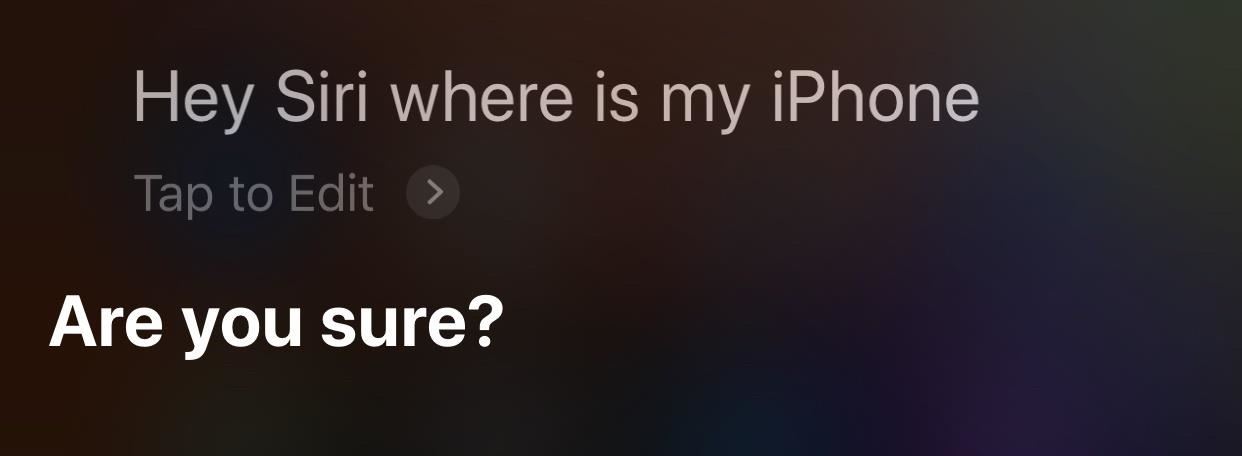
24. Asking Siri Where Your Stuff Was Didn't Work (39531873)Apple alerts users that in iOS 12 dev beta 1, Siri might have given "unexpected responses" to "Where is my ... ?" questions. Again, "might" did not mean the issue would happen every time. This was fixed in dev beta 2 and in the public beta.
25. Some EA Games Didn't Run Well (39847417)Some EA games might have quit unexpectedly on devices running iOS 12 dev beta 1. Apple named "Real Racing 3" and "Sims Free Play" as two examples, so the problem might not have been too widespread. This was fixed in dev beta 2 and in the public beta.
26. Bank of America Users Couldn't Check Accounts (39975169)The iOS 12 release notes for dev beta 1 claimed that "Some users might be unable to log in to or view account information in the Bank of America app." This was fixed in dev beta 2 and in the public beta.
27. Citi Mobile's App Was Also Broken (40205739)Citibank customers would have wanted to avoid dev beta 1 since the Citi Mobile app would crash right when launching it. This was fixed in dev beta 2 and in the public beta.
28. The Weather Widget Wasn't Working (41096139)If you depend on the Weather widget in your Today view or from a 3D Touch press on the app's icon, you may have noticed it wasn't working in dev beta 2 and public beta 1. Luckily, this issue was fixed quickly by dev beta 3 and public beta 2.
29. Custom Shortcuts Wouldn't Always Save (40862775)While the Shortcuts app is not present for everyone, you can still create custom shortcuts via the Siri settings. However, when recording a custom Shortcuts phrase, you might not have been able to tap "Done" to save it until the issue was fixed in dev beta 3 and public beta 2.
30. 'Hey Siri' Wouldn't Work for All Languages (41188020)While English users wouldn't have had any issues here, if you changed Siri's default language to either Chinese, Japanese, or Korean, you wouldn't have been able to set up "Hey Siri" on the device. Apple suggested setting up "Hey Siri" before updating to dev beta 2 or the public beta since those versions were where the issue appears. They also suggested using a different device signed into the same iCloud account. This issue was fixed in dev beta 3 and public beta 2.
31. Siri Shortcuts Might Not Have Worked for PDFs (40395673)Siri shortcuts are an exciting new iOS 12 feature. However, they might not have worked for PDF images. Apple's "workaround" was to use another image format, but now the issue has been fixed, in both dev beta 4 and public beta 3.
32. Skype Might Have Crashed After Logging In (39666451)Apple claimed Skype might unexpectedly quit on iOS 12 beta after logging in. Since dev beta 3 and public beta 2, this is no longer an issue.
33. Workout Routes Might Have Been Unavailable (40008565)Checking out your route after a walk or jog is a fulfilling way to track your fitness. Unfortunately, your map might not have presented itself in iOS 12's Activity app. This issue is fixed as of dev beta 4 and public beta 3.
34. Speaker Tiles in Group FaceTime Calls Wouldn't Enlarge (40615683)When in a Group FaceTime call with other users, the current speaker's tile is supposed to enlarge, to visually emphasize who it talking. While this worked in most cases, Apple stated that the automatic enlargement of this tile might not have worked when using external headphones. The company patched this issue in dev beta 3 and public beta 2.
35. FaceTime Calls May Have Had Poor Connections (41033989)If you make a lot of FaceTime video calls, you might have been interrupted by a "poor connection" message. You won't notice it anymore, however, as Apple fixed the issue with dev beta 3 and public beta 2.
36. FaceTime Might Have Quit After Opening It (41189126)When you tried to make a call via the FaceTime app directly, the app may have crashed on you right away. This problem was patched in dev beta 3 and public beta 2.
37. Voicemail Notifications Weren't Reliable (39826861)Apple cautioned voicemail notifications might be inconsistent and might not appear when your iPhone is locked. This voicemail bug was fixed in dev beta 3 and public beta 2.
38. Enabling SIM PINs Would Result in No Service (40958280)If you tried to enable a SIM PIN on your iPhone, the device would lose cellular service. As of dev beta 3 and public beta 2, this bug is no longer an issue.
39. There Were Too Many 'Ask for More Time' NotificationsIf you're a parent or guardian, whenever a child's device would request more screen time for a particular app, even if you had entered the passcode on the child's device to approve more time, you'd still get a notification prompt on your own iPhone. This could be fairly annoying. Fixed in dev beta 3 and public beta 2.
40. Child Web Usage Wouldn't Show Up in Your Screen Time Report (40218447)While Screen Time lets you view your child's iPhone activity, iOS 12 beta used to ship with a bug that would stop you from viewing their website usage. This issue was fixed in dev beta 4 and public beta 3.
41. Downtime's Always-Allowed Defaults Wouldn't Be Allowed (40320173)That might sound a bit confusing — Downtime is a new feature that "Do Not Disturbs" your entire iPhone for you. You get to pick and choose which apps you're allowed to use during Downtime, called "Always Allowed," with iOS offering a suite of default apps at the start. These defaults used to not be allowed in the iOS 12 beta until you had tapped Settings –> Screen Time –> Always Allowed to refresh the list of apps, but since dev beta 4 and public beta 3 removed this bug, this issue no longer exists.
42. Alphanumeric Passcodes Could Have Broken Screen Time (40671666)When setting a passcode for Screen Time, Apple implored you to only use numbers. Otherwise, it might have been impossible the enter the passcode when trying to access the feature. This is no longer the case, as of dev beta 4 and public beta 3.Don't Miss: How to Create a Strong (Or Stronger) Passcode for Your iPhone
43. Messages Might Not Launch from Siri's Screen (39941268)When sending a text to a friend with Siri, it can be convenient to tap the message UI presented on-screen to jump into the conversation in Messages. That might not work in the iOS 12 beta, at least in any version before dev beta 3 and public beta 2. If you've updated to at least one of those versions, however, you'll be just fine.
44. Voice Memos Didn't Sync to iTunes (40346169)For all the hullabaloo about Voice Memos coming to Mac, the iOS 12 beta didn't want to cooperate with your MacBook or iMac. As of dev beta 4 and public beta 3, however, they're working as they should.
45. Action Buttons in Notifications Were Hard to See (41050794)Starting in iOS 12 dev beta 2 and the public beta, action buttons that appeared in interactive notifications might have become illegible when Increase Contrast settings were enabled. Fixed as of dev beta 3 and public beta 2.
46. There Were Pausing Issues with AirPods (40824029)If you used your AirPods religiously, you might have only been able to pause audio playback by removing both AirPods from your ears, not just one. Don't worry about it now, since Apple fixed this issue with dev beta 3 and public beta 2.Buy AirPods Online from Amazon | Apple | Best Buy
47. CallKit Extensions May Have Been Disabled (39548788, 39885031)If you used any CallKit extensions on your iPhone, such as Hiya Caller ID and Block, you might have had to quit and relaunch the Phone, Messages, or Settings app to get them working again. This issue was fixed in dev beta 3 and public beta 2.
48. Spam Notices May Have Not Displayed (41018290)If you used a CallKit extension on your iPhone to show potential spam callers and texters, the SMS and Phone Call spam classification extensions wouldn't load and would display a black screen. This issue is no longer a problem as of dev beta 3 and pubic beta 2.
49. CarPlay May Not Have Worked (40494430)CarPlay might not have connected to certain vehicles, so if you installed the beta, you ran the risk of not being able to use your iPhone with CarPlay in your car or truck. This issue was patched in dev beta 3 and public beta 2.
50. No Navigation Button in iWork's Share Sheet (40368764)Whenever you tried to add a person to an iWork document (Pages, Numbers, Keynote), the navigation button that appears in the Share Options sheet was missing. Fixed in dev beta 3 and public beta 2.
51. Artwork May Not Have Shown in the Media Player UI (40989415)When using a third-party application, whenever you connected a pair of headphones to your iPhone, the Media Player UI may not have shown you the artwork for the song or video. This issue was fixed in dev beta 3 and public beta 2.
52. Netflix May Have Crash When Downloading Videos (40653033)If you downloaded Netflix videos for offline viewing in dev beta 2 and public beta 1, Netflix would quit unexpectedly. This issue has been fixed in dev beta 4 and public beta 3.
53. You Might Not Have Been Able to Log into Twitter (40910390)While not an issue in dev beta 1, if you were running iOS 12 dev beta 2 or public beta 1, when you went to log into the Twitter app, you may have been presented with a blank screen. This issue was solved in dev beta 3 and public beta 2.
54. Taobao Might Have Crashed at Launch (40958373)If you tried to open the Taobao app, it might have quit right away. This issue was fixed in dev beta 3 and public beta 2.
55. Modifying Time for App Limits Would Overwrite Customized Days (40668188)With Screen Time and App Limits, iOS lets you set different time limits for each day. If you want to give more app time to Instagram on Saturdays, for example, you can set that here.Unfortunately, this bug would wipe out those customized days once you modify time for an app or category. Apple has dropped this bug from its release notes as of dev beta 3 and public beta 2, so, more than likely, the issue doesn't exist anymore.Don't Miss: How to Set App Limits on Your iPhone in iOS 12
56. Siri Shortcuts Might Not Have Worked While Using CarPlay (39882673, 41652481)If you wanted to use Siri Shortcuts, either suggested ones or ones from the Shortcuts app, you might not have had success if using CarPlay while driving. Fixed in dev beta 5 and public beta 4.
57. Siri Shortcuts Might Not Have Been Restored from iCloud Backup (40899084)If you had enabled Siri Shortcuts either from the Shortcuts app or from ones suggested by Siri, they may not have been accessible if you needed to restore your device to a backup, meaning you'd have to start all over again. This issue was patched in dev beta 5 and public beta 4.
58. You Might Not Have Been Able to Download Apps from the App Store (41858048)In dev beta 4 and public beta 3, you might have encountered an error message while downloading an app from the App Store. If this happened to you, Apple said to simply try downloading the app again, so it didn't appear to be a life-changing issue. Nevertheless, this issue was fixed with dev beta 5 and public beta 4.
59. Your iPhone X's Cell Signal Bars Might Have Been Out of Whack (41909622)Apple warned iPhone X beta testers that their signal bars might not be accurate. If you depended on those bars frequently to clue you in to your level of cell service, this bug might have kept iOS 12 off your iPhone X. This issue was patched in dev beta 5 and public beta 4.
60. The Cellular Data Settings Section May Have Refreshed Constantly (41587310)This was a weird bug where the Cellular Data section in Settings –> Cellular would refresh constantly. If you relied on the information here, it could become annoying very quickly. Fixed in dev beta 5 and public beta 4.
61. Wallet Might Have Unexpectedly Quit on Launch (41603255)The Wallet app might have quit on you upon launching in iOS 12. Apple suggested users quit Wallet via the application switcher, then try launching the app again. This issue was fixed in dev beta 5 and public beta 4.
62. Screen Time Usage Data & Settings Might Not Have Synced (41259736)Your devices' Screen Time data might not have synced properly between all of your devices. Apple suggested restarting the affected devices as a workaround, but now the issue is resolved as of dev beta 5 and public beta 4.
63. Bluetooth Devices Might Not Have Worked After a Restart (42397527)After restarting your iPhone, paired Bluetooth accessories might not have functioned correctly or might have been displayed using the device's address rather than its name. Apple claimed the workaround for this issue was to go to the Bluetooth settings, select Forget This Device and pair the accessory to your device again. Fixed in dev beta 6 and public beta 5.
64. You Might Not Have Been Able to Ask Siri to Use Apple Pay Cash (41015948)Asking Siri to use to Apple Pay Cash to send or request money might have produced an error. Apple's workaround? Include a dollar amount in the Siri request. This was fixed in dev beta 6 and public beta 5.
65. Siri Couldn't Open an App by Name in CarPlay (41099393)Siri couldn't open an app by name while using CarPlay, nor could Siri use Shortcuts which involved opening an app. Fixed in dev beta 6 and public beta 5.
66. Some Shortcuts Requests Might Have Errored Out (41507171)Some Shortcuts requests might not succeed and display "Shortcuts will continue with your request," according to Apple. This issue was fixed in dev beta 6 and public beta 5.
67. Settings Might Quit When Viewing a Voice in Speech Settings (42859905)Your Settings app might have unexpectedly quit when attempting to view or select a voice in Speech settings. Fixed in dev beta 7 and public beta 6.
68. Your Apple TV Could Give You Trouble as a HomeKit Hub (42782193)3rd generation Apple TVs might not have worked as a HomeKit hub, while the 4th generation Apple TV and Apple TV 4K might not have shown up as a HomeKit hub unless the setup was completed using an iOS device. Apple's workaround: add Apple TV to the home via Settings > AirPlay > Room. This issue was fixed in dev beta 7 and public beta 6.
69. Siri & Search Might Have Unexpectedly Quit Settings (42789893)If you uninstalled FaceTime, Mail, Maps, or Voice Overs on your iPhone, you should've been prepared for Settings to quit when attempting to open Siri & Search settings. Bug fixed in dev beta 7 and public beta 6.
70. Apple Pay Might Not Have Been Available (31989675)Dev beta 7 and public beta 6 introduced a bug that could cause Apple Pay not to be available. Fortunately, that issue was fixed in dev beta 10 and public beta 8.
71. Siri Shortcuts Might Not Have Worked if a Device Is Locked (41307405)This issue was fixed in dev beta 11 and public beta 9.Don't Miss: How to Use the Shortcuts App on Your iPhone in iOS 12
72. Developer Issues That Were FixedWhen deploying apps to iOS 11 or earlier, JPEG image assets were not included in the compiled .car file. (40507731: Fixed in dev beta 2 and in the public beta.) Platform Switching for Switch Control was unavailable in iOS 12 beta. (40035312: Fixed in dev beta 2 and in the public beta.) Sysdiagnose initiation via the Analytics menu item in AssistiveTouch and Switch Control was unavailable. (40504710: Fixed in dev beta 2 and in the public beta.) Signing into a previously-used sandbox account during the In-App Purchase flow could produce unexpected results. (40639792: Fixed in dev beta 2 and in the public beta.) In .obj models, the bump semantics in .mtl files don't map to MDLMaterialSemanticTangentSpaceNormal. (40665817: Fixed in dev beta 2 and in the public beta.) There was no default icon for RPBroadcastPickerView. (38813581: Fixed in dev beta 2 and in the public beta.) Assigning a value to a parameter which began with a capital letter threw NSUnknownKeyException. (40464710: Fixed in dev beta 2 and in the public beta.) When performing a shortcut in Siri, custom responses wouldn't be included in the confirmation dialog text which Siri reads. (40562557: Fixed in dev beta 2 and in the public beta.) Presenting a UIImagePickerController might have caused the app to be terminated with a privacy violation if the app did not include the NSMicrophoneUsageDescription key in its Info.plist. (40490417: Fixed in dev beta 2 and in the public beta.) Universal Links might not open the expected target app. Please submit a bug report if you experience this problem. (40568385: Fixed in dev beta 3 and public beta 2.) Certain USDZ models loaded in Safari might not render thumbnail images. (40252307: Fixed in dev beta 3 and public beta 2.) When layers are quantized <8-bits or with a lookup-table, users may encounter issues in deconvolution and recurrent layers. Workaround: Use only linear 8-bit quantization on these layers. (40632252: Fixed in dev beta 4 and public beta 3.) ReplayKit broadcasting will be enabled in a future release. (40342264: Fixed in dev beta 3 and public beta 2.) Viewing Wallet passes in SFSafariViewController might be unavailable. Workaround: View the pass in Safari. (40415649: Fixed in dev beta 4 and public beta 3.) Shortcuts donated with images created using the +[INImage imageWithURL:] API won't display an image. Workaround: Use +[INImage imageWithImageData:] (40623457: Fixed in dev beta 3 and public beta 2.) SiriKit queries might be delayed or result in an error message — Workaround: Restart the affected device. (41759318: Fixed in dev beta 5 and public beta 4.) Models with flexible input sizes may unexpectedly reject an input using the default size displayed in Xcode's type field. Workaround: Supply a non-default size input on first prediction call. (40632323: Affects all dev betas.) A song cannot be added to a playlist using the addItemWithProductID API. (40508800: Affects all dev betas.) Users might not see custom UI when using Siri Suggestions Shortcuts with built-in intents — Workaround: Add the shortcut to Siri in Settings > Siri & Search. Then use Siri to run the shortcut and verify the custom UI within Siri. (42406900: Affects dev beta 5 and public beta 4.) When running an NSUserActivity-based shortcut, Siri might not automatically open the app and instead display an Open button which can be used to open the app (42773201: Fixed in dev beta 7 and public beta 6.) In Swift, the shortcut property of INVoiceShortcut must be accessed as _ _shortcut. (40418400: Fixed in dev beta 7 and public beta 6.) Certain languages may exhibit clipped or misaligned layout. (40420329: Fixed in dev beta 9 and public beta 7.) Certain languages may display unlocalized text. (40420422: Fixed in dev beta 9 and public beta 7.)
So, Should You Download iOS 12?Look, hopping on any beta is a gamble, and iOS 12 is no exception. While this initial release is littered with bugs, it has plenty of upsides as well. You might think the new features are the main attraction here, but many simply praise Apple for iOS 12's speediness, especially on older hardware. If you're prepared to face a few bugs, you might end up liking your beta experience this go around.Don't Miss: 41+ Cool New iOS 12 Features You Didn't Know AboutFollow Gadget Hacks on Facebook, Twitter, YouTube, and Flipboard Follow WonderHowTo on Facebook, Twitter, Pinterest, and Flipboard
Cover image and screenshots by Jake Peterson/Gadget Hacks
A demonstration of the tools and techniques used to make your own 1/4" instrument cable at home. How to Tin a Soldering Iron Tip or Re-tin an Old Soldering Iron Tip - Duration: 11:03.
How to Solder instrument cables « Hacks, Mods & Circuitry
In addition to making it easier to connect your phone to a monitor to enjoy a "PC-like experience," Samsung has also reduced the price of their accessories, making it cheaper to turn your Note 9 and S10 into a computer. Here is a list of the best USB-C to HMDI accessories for Samsung's DeX: BEST USB-C to HMDI ADAPTERS for SAMSUNG DeX:
Best Adapter for Samsung Dex Mode on Samsung Galaxy Note 9
Live streaming using Compute Engine, Cloud Storage or Cloud CDN enables you to take advantage of the power, scale and pricing innovations that no other cloud provider can offer the media and entertainment industry.
How To: Creep Out Your Workmates on Halloween: Windows Edition By The Rocket Box; Windows Tips; Want to get even this Halloween? Want to scare somebody with nothing but a few lines of code? Here's how it can be done
13 Halloween Window Decorations That Will Creep Out All Your
thewindowsourcedesmoines.com/2018/10/15/13-halloween-window-decorations-will-creep-neighbors/
13 Halloween Window Decorations That Will Creep Out All Your Neighbors One of the spookiest, creepiest ways to get your home in the Halloween spirit is to take full advantage of your windows — they're the perfect space for cool decals, because when the light from inside shines out, it leaves an eerie, shadowy glow.
Halloween Creep Tales 2.0 (2015 - Special Edition) (HQ
In this video, I show you how to turn your old pc into the ultimate Retro gaming machine using Recalbox running from a USB Stick. Play 1000's of your favorite retro games! Buy a pc
Convert Your Classic Game Boy into a Powerhouse - WonderHowTo
In this video tutorial, viewers learn how to control which games can be played with Net Nanny. Begin by opening the program and select Manage Games under Games. Users will have 3 options on how to block or allowing the games.
Parental Controls: Can I enter *.* to block all websites
Apple CarPlay is getting a redesign. Apple announced at its annual Worldwide Developer's Conference that it is overhauling the in-car entertainment system's dashboard to display more relevant
The WonderHowTo Redesign « Null Byte :: WonderHowTo
With a VPN enabled on your computer, tablet, or smart TV, the device will use a masked IP address that points directly to the server where the VPN service lives. If the VPN server is located within the borders of the United States, it will register as an American IP address and Netflix will display the desired library contents.
American Netflix - Watch US Netflix Anywhere in the World
How to Clear Cookies and Cache in Firefox. Web browsers have a cache to store information such as images from the sites you visit. By caching content on your browser, web pages load faster.
How to Delete browser cookies In Mozilla Firefox « Internet
Step 5: Enjoy Your New Musical Keyboard. From now on, your keyboard will simply make music as you type. The sound level is tied into your system media volume, so you'll probably want to set that somewhere in the middle to ensure that you can hear the sounds without them being too over the top.
How to Make SmartWatch || DIY Project « How to Videos
First Time Ever Seen: Secret of Light: 140 Year old mystery solved! Crookes Radiometer - Duration: 15:37. Theoria Apophasis 1,281,039 views
Experiments to do at home | Rivervale Primary Science
Swype is already the fastest way to type on a mobile phone and in this tutorial you will learn how to practice so that you get even faster. Once you get the hang of it, you will be Swyping like crazy. Try these little exercises and work out your fingers so that you can beat the world record for text
How to Capitalize your letters when texting with Swype
In this tutorial I will show you how to make a very powerful and easy pen gun. Step 1: Collecting the Material . You will need :- 1 pen 1 tape 1 rubber band And scissors.
How to Make a High Powered Pen Gun - wikiHow
Is there a way to send a message for all my contacts, because the application just allows 25 contacts at once? Stack Exchange Network Stack Exchange network consists of 175 Q&A communities including Stack Overflow , the largest, most trusted online community for developers to learn, share their knowledge, and build their careers.